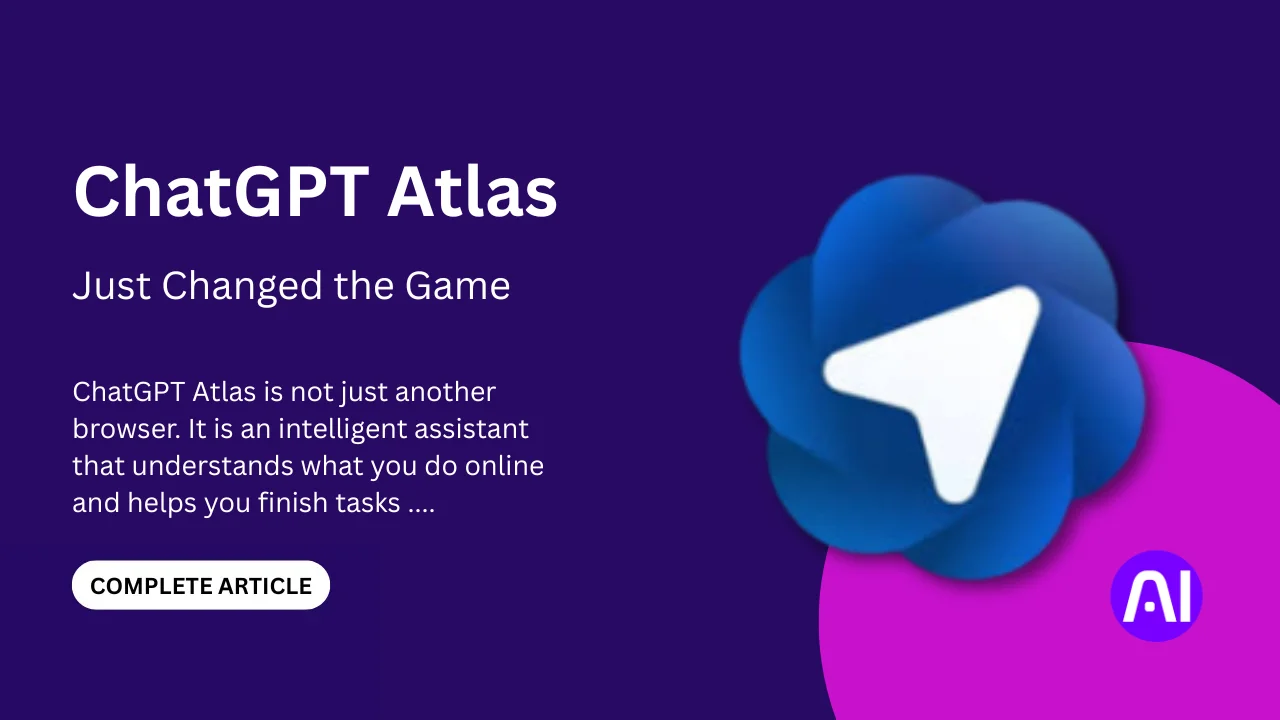
ChatGPT Atlas is not just another browser. It is an intelligent assistant that understands what you do online and helps you finish tasks faster. It blends the power of generative AI with browser automation, so you can search, write, and plan without switching tabs. This new tool is built on deep learning, allowing it to read, remember, and act like a real helper inside your browser.
With Atlas, web browsing becomes context-aware and simple. You can ask questions, summarize pages, or even tell it to perform multitask automation like finding data, filling forms, or writing replies. It keeps browsing memory logs and user-interaction data to learn from your habits while giving you control over what it stores.
In this article, you will learn what ChatGPT Atlas is, how to use it, and why it is called a game-changer. We will explore its best tools, agent mode, and privacy features, along with real-world tips that show how this AI browser can make your online work easier and smarter.
What exactly is ChatGPT Atlas and how is it different?

ChatGPT Atlas is an AI browser made by OpenAI. It mixes ChatGPT’s brain with a web browser, allowing users to search, read, and act on pages using smart automation.
Built by OpenAI, Designed for Intelligent Browsing
ChatGPT Atlas is built by OpenAI, the same team behind ChatGPT. It is more than a browser, it is an intelligent browsing system powered by generative AI. The idea is simple, you open pages like normal, but now your browser can understand context, recall information, and help you finish tasks through built-in automation.
Agent Mode That Works for You
This AI browser works with an agent mode that lets it act for you. It can open links, summarize text, fill forms, or find data across multiple tabs. It uses a memory engine to store safe browsing history datasets and session logs, making your workflow smooth and continuous. You can control what it remembers, so your privacy stays protected.
Browsing That Thinks With You
Unlike Chrome or Firefox, ChatGPT Atlas combines browsing and thinking. You do not just type and search, you chat and get results that make sense. Its sidebar assistant can handle multiturn tasks, use semantic search, and provide real-time insights without leaving the page.
This is what truly changed the game, browsing now feels more like teamwork with an intelligent assistant than just clicking and typing.
How does ChatGPT Atlas compare to Chrome, Comet and others?
ChatGPT Atlas outshines Chrome and Comet with built-in AI, agent mode, and memory features. It turns browsing into an interactive experience rather than a simple search-and-click task.
Here’s a quick comparison:
| Feature | ChatGPT Atlas | Google Chrome (AI features) | Perplexity Comet |
| AI Integration | Built-in generative AI with ChatGPT | Limited to AI extensions | AI-powered search and Q&A |
| Task Automation | Yes, through Agent Mode | No | Partial (simple tasks) |
| Memory Features | Browser memories and session logs | None | Basic history only |
| Platform Support | macOS (Windows soon) | Windows, macOS, Android, iOS | Web and mobile |
| Privacy Control | Strong user control over data | Shared through Google account | Moderate privacy tools |
According to recent browser market share logs and performance benchmarks, Chrome remains dominant, but AI browsers like ChatGPT Atlas are growing fast in user uptake. The future of browsing looks like a battle between traditional speed and smart automation.
As part of this next-gen AI ecosystem, ChatGPT Atlas represents a major shift toward intelligent, assistant-driven browsing that could soon redefine how people use the web.
What features make ChatGPT Atlas stand out?

ChatGPT Atlas has four main features that make it powerful, a smart sidebar, agent mode, memory engine, and strong privacy settings that balance AI help with user control.
Sidebar Assistant
The sidebar in ChatGPT Atlas lets you summarize pages, analyze data, or rewrite content without leaving your tab, saving time and boosting focus.
The sidebar assistant is one of the most loved parts of ChatGPT Atlas. It acts as an inline AI tool that lives beside your web pages. You can highlight any text and ask it to explain, rewrite, or summarise instantly.
For researchers, it can extract key points from long articles. For students, it helps edit or simplify writing directly in the browser. This mix of content summarisation and data extraction turns the web into a more productive workspace.
Agent Mode
It lets ChatGPT Atlas perform multi-step tasks on its own, such as trip planning, shopping, or gathering research data, while you stay hands-free.
Agent mode transforms the browser into an autonomous helper. It can open tabs, fill forms, or complete tasks in a pipeline. For example, you can say, “Plan a three-day trip to Dubai,” and it will find flights, hotels, and local attractions automatically.
The agent mode logs each automation sequence safely, using task pipelines and API hooks to carry out your commands. This workflow automation makes ChatGPT Atlas much more than a browsing tool, it becomes a personal assistant that acts in real time.
Browser Memories & Context-Aware Assistance
ChatGPT Atlas remembers your browsing sessions to offer personalized, context-aware help while keeping you in charge of what data it saves.
Atlas includes a memory engine that allows session continuity. It can remember what you searched, what you wrote, or which tab you used last time. This user context retention gives you a seamless experience when switching between tasks.
You can view or delete stored data anytime, ensuring full control. The result is an adaptive UI that learns from your preferences while protecting your behavioral data.
Privacy, Safety & Risks
While ChatGPT Atlas offers strong security, users should still manage data permissions carefully to avoid risks like prompt injection or unwanted data sharing.
Every AI tool comes with privacy concerns, and ChatGPT Atlas is no exception. It handles sensitive browsing data, so OpenAI has built safeguards like permission prompts, encrypted logs, and limited data-sharing settings. Still, users must remain aware of access permissions and security events.
Reports from sources like The Hacker News remind us that threats like prompt injection or hidden scripts can appear in any AI-integrated system. With proper data governance and trust settings, users can stay secure while enjoying the full power of this AI browser.
How can you start using ChatGPT Atlas today?
Getting started with ChatGPT Atlas is simple. Download it on macOS, sign in with your ChatGPT account, set your memory options, and start exploring the AI-powered sidebar.
Step 1: Download and Install
To use ChatGPT Atlas, visit OpenAI’s official website and download the installer for macOS. Once the setup is done, open the app and log in using your ChatGPT account. Your browser will load with a clean interface that looks familiar yet smarter, giving you instant access to the power of an AI browser.
Step 2: Import and Set Up Memories
You can choose to import your old bookmarks or history. These import logs help you keep your favorite sites in one place. Next, you’ll see an option to enable or disable browser memories.
If you turn it on, Atlas will save session data and preference files to make your browsing more personal. If privacy is your top concern, you can leave it off or clear it anytime from settings.
Step 3: Explore the AI Sidebar
Using it is easy. Open any web page, click the sidebar, and type your question. The AI will read the page, summarize, or perform actions for you. For best results, customize startup configuration and memory preferences.
Avoid saving sensitive data in automated tasks, and update your browser often for security fixes. Once set up, you’ll have a smooth beginner workflow that shows why ChatGPT Atlas is the easiest AI browser to get started with.
Who is using ChatGPT Atlas and how?
Case Study 1: Content Creator for Weekly Posts
User: A freelance blogger writing SEO-friendly weekly articles.
Challenge: The blogger spent hours switching between browser tabs to research topics, gather data, and draft posts.
Solution: With ChatGPT Atlas, the blogger used the sidebar assistant to summarise key points from multiple articles, gathered statistics, and drafted structured content inside one window. The agent mode helped open relevant links and’ extract quotes automatically.
Takeaway: This user cut research time by an estimated 40% and stayed focused without jumping between tabs.
Case Study 2: Academic Researcher Handling Many Tabs
User: A university researcher working on a literature review.
Challenge: The researcher had dozens of open tabs, found it hard to keep track of what each had and how they connected.
Solution: Using ChatGPT Atlas’s browser memories and context-aware assistance, the researcher let the browser remember prior actions, track session logs, and allowed quick summarisation of each tab through the sidebar.
Takeaway: The workflow became smoother, with less mental overhead remembering what came from where, enabling more time for analysis instead of navigation.
Case Study 3: E-commerce Shopper Automating Orders
User: A regular online shopper who tracks deals, adds items to cart, and waits for filters like price drops.
Challenge: Manual checking of dozens of sites each week became tedious and prone to missed deals.
Solution: The shopper used ChatGPT Atlas’s agent mode to locate product deals, compare prices, add to a wishlist or cart, and set reminders; all inside the browser.
Takeaway: That shopper reported more timely purchases and fewer missed opportunities, thanks to automation of routine tasks.
These real-world adoption stories show how ChatGPT Atlas moves beyond normal browsing workflows. Instead of just click and search, users benefit from productivity boost and smarter task completion logs, though they should remain mindful of memory settings and privacy controls.
Smart Tips to Use ChatGPT Atlas Like a Pro

Want to unlock the full potential of ChatGPT Atlas? Here are some practical, pro-level tips to make your AI experience smarter, faster, and more secure.
Personalization & Privacy
- Customize your memory settings, tailor what Atlas remembers about your preferences or reset session memory for complete privacy.
- Regularly review prompt logs and performance metrics in your settings to understand and improve your chat habits.
Agent Mode Optimization
- Build custom prompts that define tone, task goals, or reference data, perfect for agent workflows like content research or automation.
- Monitor and clear browsing history when using Agent Mode to protect sensitive data and maintain system performance.
Productivity & Workflow
- Use the sidebar for quick research, summarization, or fact-checking, it saves time by keeping context in view.
- Reset sessions strategically to improve focus and avoid data clutter during extended workflows.
- Integrate prompt engineering techniques (like step-by-step reasoning or context chaining) for better responses in research-heavy tasks.
Technical Maintenance
- Always keep your browser and extensions updated. Many performance upgrades roll out through regular release notes from the OpenAI Help Center.
- Use performance dashboards to identify latency or response-time issues and optimize your productivity setup.
What’s Next for ChatGPT Atlas and What That Means for You
ChatGPT Atlas is set to expand to Windows, iOS, and Android while adding multi-profile support and developer tools. The future of browsing may shift toward AI-native experiences, and users should watch for ecosystem updates and evolving privacy rules.
1. Expanding Beyond macOS
ChatGPT Atlas is set to move beyond macOS, with official plans for Windows, iOS, and Android releases. This expansion will bring Atlas’s AI-driven browsing to more users worldwide, bridging the gap between desktop and mobile ecosystems.
2. A Glimpse at the Upcoming Features
OpenAI’s roadmap includes multi-profile support, developer tools for custom integrations, and enhanced memory management. These additions will make Atlas not just an AI assistant in a browser but a full AI workspace.
3. The Rise of AI-First Browsing
Atlas signals a major shift toward AI-native browsing where your assistant reads, reasons, and acts directly within your browsing session. This could mark the beginning of a new search paradigm where queries turn into actions automatically.
4. What Users Should Watch For
Stay alert to version rollout timelines, feature update logs, and compatibility notes. Keep an eye on privacy regulations too, as session logs and behavioral data become increasingly central to the AI-browser experience.
5. The Future of Browsing Is Intelligent
The browser wars are evolving into AI wars. As ChatGPT Atlas continues to grow, it’s redefining what browsing means from simply navigating pages to co-creating your digital journey.
Conclusion
The introduction of ChatGPT Atlas really changed the game for web users. It brings together browsing and AI in a way we have not seen before. With built-in generative AI, agent mode and memory features, it blends intelligent assistant functions into daily internet use. You get a browser that does more than show you pages; it helps you act and think smarter online.
If you are ready to try it, go ahead but do so with awareness. The productivity gains are real: you can save time, automate tasks and carry context across sessions. However, keep in mind your privacy settings, data permissions and whether the features match your workflow. Integration of AI + browsing is powerful, but readiness matters just as much as capability.
Stay updated on AI trends! For more expert tips and the latest breakthroughs, follow AI Ashes Blog. Dive deeper into machine learning, data science, and cutting-edge AI research.
Check out this article on Master NLP Best Practices for Analyzable & Clear Data.
FAQs
Q1: Is ChatGPT Atlas free?
Yes, ChatGPT Atlas has a free version that you can use on macOS right now. Some advanced features may need a paid plan.
Q2: Can I use ChatGPT Atlas on Windows?
Not yet. ChatGPT Atlas is currently available on macOS only. A Windows version is coming soon.
Q3: Is there a ChatGPT Atlas APK for Android?
No official ChatGPT Atlas APK exists yet. Android support is planned but not released. Be careful of fake downloads.
Q4: What makes ChatGPT Atlas different from regular browsers?
ChatGPT Atlas lets you chat with web pages, remember your past tabs, and automate tasks. It is like having an intelligent assistant inside your browser.
Q5: Does ChatGPT Atlas use my browsing history and data?
Yes it can if you enable browser memories. You choose how much memory it uses and you can clear it anytime.
Q6: What kind of tasks can ChatGPT Atlas do for me?
It can summarise articles, open tabs for you, fill forms, and carry out multi-step tasks with the agent mode.
Q7: Do I need to pay for agent mode in ChatGPT Atlas?
Yes, agent mode is part of a premium plan (Plus, Pro, or Business) in ChatGPT Atlas for now.
Q8: Will ChatGPT Atlas work on my mobile phone?
It is not available on mobile yet. iOS and Android versions are planned in the future.
Q9: Can I import my old browser history and bookmarks into ChatGPT Atlas?
Yes, you can import bookmarks, passwords, and browsing history from another browser when you set up ChatGPT Atlas.
Q10: Is ChatGPT Atlas safe to use with my private info?
It has strong privacy controls, but you should review what you allow it to remember and always clear data you don’t want saved.