I research how modern platforms turn speech into searchable content and save me time without cutting quality. In this guide I focus on best AI tools for voice recording and dedicated solutions that record voice, transcribe speech, and surface key points automatically.
I will explain how I picked the eight services I compare and what features matter most: speaker recognition, summaries, action items, translations, and integrations with Slack, Zoom, and Google Meet.
I also cover security and privacy, end-to-end encryption, granular permissions, and compliance such as GDPR and HIPAA so you can trust sensitive conversations remain protected.
Each tool section will follow a simple format: a short overview, core features, pros and cons, and best use. That way you can see where audio quality or speed wins, and which platforms fit teams or solo creators working on meetings, video, or podcast content.
Key Takeaways
- I compare best AI tools for voice recording that turn speech into search-ready content and summaries.
- Look for speaker ID, action-item extraction, and strong integrations.
- Security matters: encryption, permissions, and compliance are nonnegotiable.
- Balance audio quality with speed depending on your workflow and deadlines.
- The guide uses the same structure for each option to make comparison fast and clear.
Why I care about AI voice recorders right now
I rely on modern recorders that turn live conversations into organized notes and searchable transcripts. This sets my expectations before I review specific platforms.
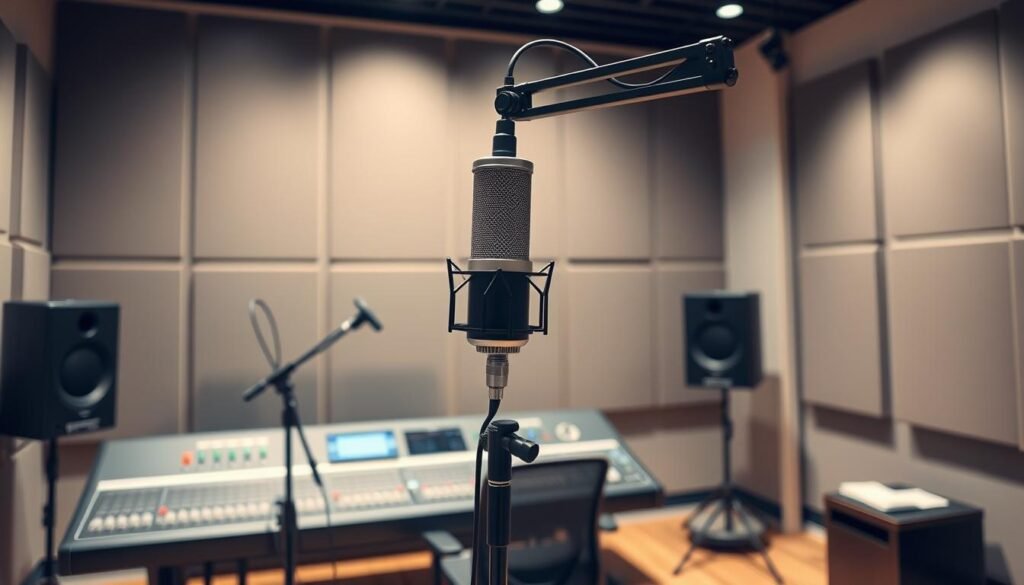
What “voice recording” means today: speech, notes, and searchable text
Today, voice is more than a saved file. It means accurate speech-to-text, labeled speakers, and clean notes I can search later.
These systems tag who said what, surface key points, and create summaries so I revisit decisions quickly without replaying long audio.
How AI reduces busywork and improves meeting recall
AI cuts down manual typing by pulling action items and short summaries from calls. That saves me time and keeps my focus on the discussion.
I treat recordings as a reliable line to memory. When I need to know who committed to a task, I search the transcript instead of hunting through scattered notes.
The present landscape in the United States: time-saving and quality gains
In the U.S., these platforms now deliver usable accuracy and integrations with Zoom, Slack, and video workflows. Multilingual transcription also eases cross-border talks.
- Speaker ID and searchable text
- Automatic summaries and action items
- Encryption and compliance checks for sensitive work
Best AI Tools for Voice Recording: My criteria and how I test
I run the same hands-on tests across each platform to see how well speech becomes usable text in daily work. Every tool section in this guide uses the same length and structure so you can compare results quickly.
Audio quality, realism, and speaker identification
I judge audio quality by clarity, naturalness, and how well the audio aligns with the text transcript.
I test realism by listening for synthetic artifacts and timing issues.
Speaker identification is measured across mixed accents and overlapping talk to see which model keeps labels accurate.
Integrations, security, and commercial use needs
I check integrations with Zoom, Slack, and calendar sync so recordings start without friction.
I verify security claims like SOC 2, GDPR, or HIPAA and review permissions and encryption options.
Each platform is reviewed for commercial use terms, monthly minute limits, and credit usage.
- Feature depth: real-time transcription, searchable text, editor speed.
- Model trade-offs: diarization vs. processing time.
- Creation checklist: live call, upload, edit, export, and permission audit.
| Test Area | What I measure | Why it matters |
|---|---|---|
| Audio quality | Clarity, noise handling | Affects transcript accuracy and playback |
| Speaker ID | Diarization across models | Speeds review and assigns tasks correctly |
| Editor & features | Tagging, correcting names, summaries | Reduces cleanup time in daily use |
1. Otter.ai
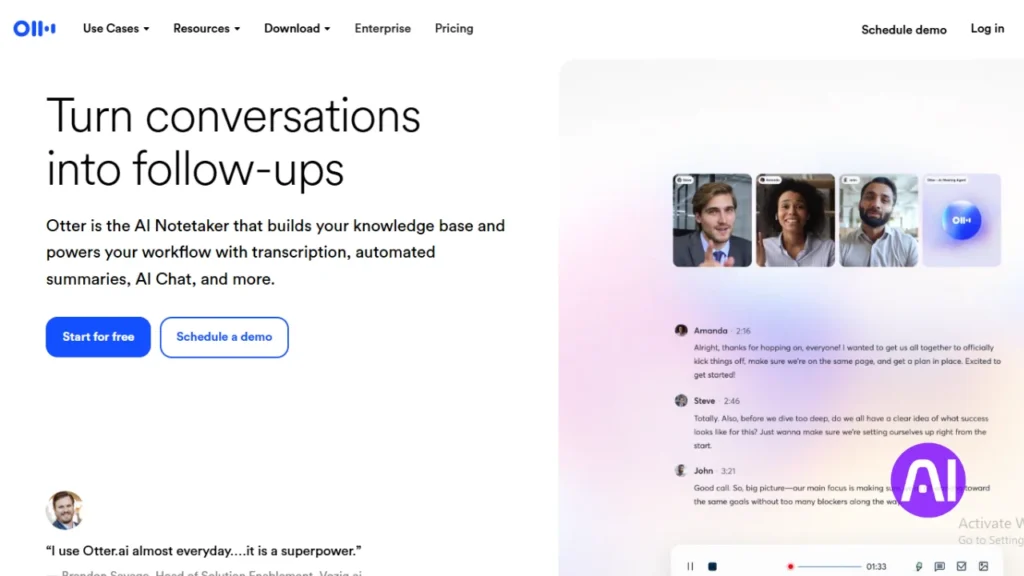
Otter.ai captures meeting audio and turns it into tidy, searchable notes I can act on the same day. It records speech in real time, labels speakers, and creates summaries so I review outcomes without replaying long calls.
Overview
Otter works inside Zoom, Google Meet, and Microsoft Teams. It attaches to calendar invites and syncs transcripts and minutes to one place. That access saves me time when I need meeting text or quick follow-ups.
Core features
- Real-time transcription with speaker identification.
- Smart summaries and keyword highlights for fast scanning.
- Editable transcripts and custom vocabulary to teach the system product names.
- Calendar and video meeting integrations to automate capture.
Pros and cons
Pros: accurate diarization on recurring voices and useful summaries that cut review time.
Cons: it sometimes stumbles on domain-specific terms and the interface can slow on very long sessions. The free plan is great to test, but minutes can run out in a busy week.
Best for
I recommend Otter for cross-functional teams, students, and anyone who wants meeting voice captured and structured without extra effort. Use custom vocabulary early so the tool learns names and produces cleaner text over time.
| Feature | Benefit | Limit |
|---|---|---|
| Smart summaries | Scan long calls quickly | May miss niche details |
| Speaker ID | Assign action items faster | Accuracy improves with repeated voices |
| Free plan | Try core features at no cost | Minute caps on heavy use |
2. Notta
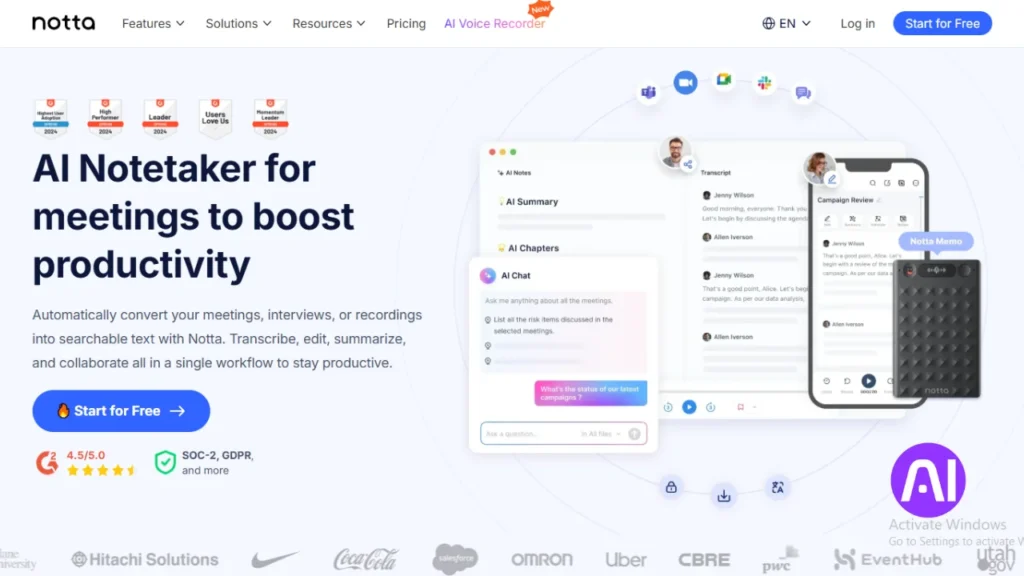
Notta makes multilingual meetings simple by turning spoken lines into synced notes I can share fast.
Overview
Notta is a flexible platform that records speech and keeps text synced across my devices. It supports over 100 languages and handles both live capture and uploads.
I can import video or upload audio files when I need a transcript after the fact. Calendar capture and cloud syncing keep everything organized and easy to access.
Core features
- 100+ language support for mixed voices and international teams.
- Real-time collaboration and cloud sync so teammates edit one transcript together.
- Audio and video transcription plus the option to upload audio for on-demand text.
- Calendar integration to auto-start recordings and avoid missed minutes.
Pros and cons
Pros: broad language coverage, quick processing, and live collaboration that speeds review.
Cons: it can misread niche accents or very fast speech in mixed voices. The free plan is useful to test features but upgrades add more minutes and team access.
Best for
I recommend Notta when my work spans countries or languages. Journalists, international teams, and students get fast, clean transcripts and an easy option to tag items for later search.
3. Fireflies.ai
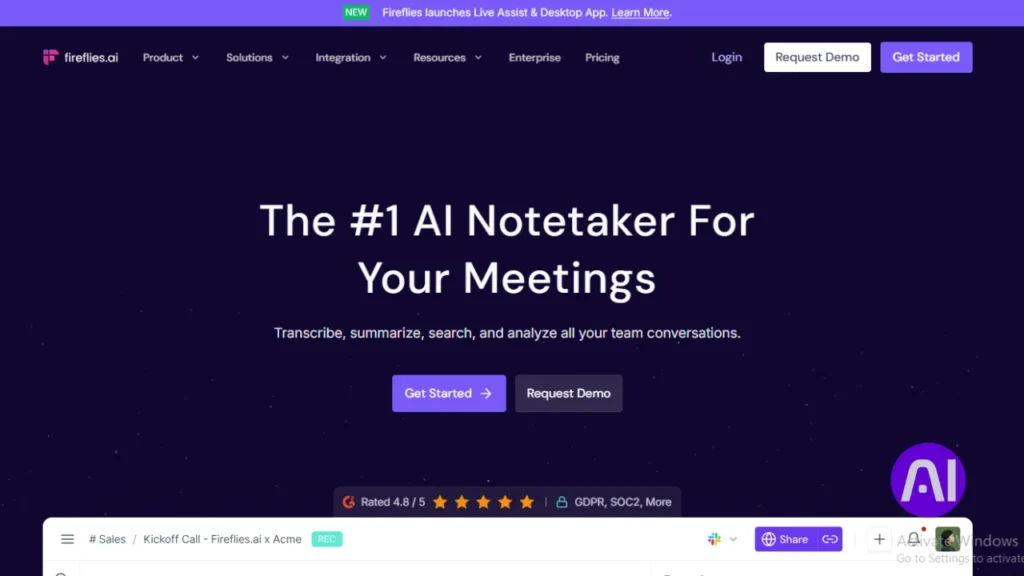
I treat Fireflies as a meeting assistant that captures conversations and adds structure so follow-ups are simple. It records calls, creates searchable text, and links highlights to work items I can act on after the call.
Overview
Fireflies records and transcribes meetings, then surfaces sentiment, decisions, and tasks. It integrates with CRMs like Salesforce and HubSpot and can push summaries into email or a project board.
Core features
- Automatic recording and transcription with speaker labels.
- Sentiment analysis and decision / task detection.
- CRM integrations and automated email summaries.
- Topic tracking, keyword alerts, and an editor to clean text and link items to a project.
Pros and cons
Pros: deep CRM sync and automated summaries speed revenue handoffs. Topic tracking helps me spot recurring points without rewatching video.
Cons: heavy analysis can surface noise unless rules are tuned. Plan tiers limit exports and advanced automation; the free plan is useful to try features.
Best for
I use Fireflies with sales, customer success, and product teams. It helps capture action items, surface trends across calls, and route summaries to ticketing or a project board so nothing gets lost post meeting.
| Feature | Benefit | Limit |
|---|---|---|
| CRM sync | Smoother handoffs to sales | Requires setup |
| Topic tracking | Find recurring issues fast | May need rule tuning |
| Free plan | Test core features | Export and automation limits |
4. Sembly
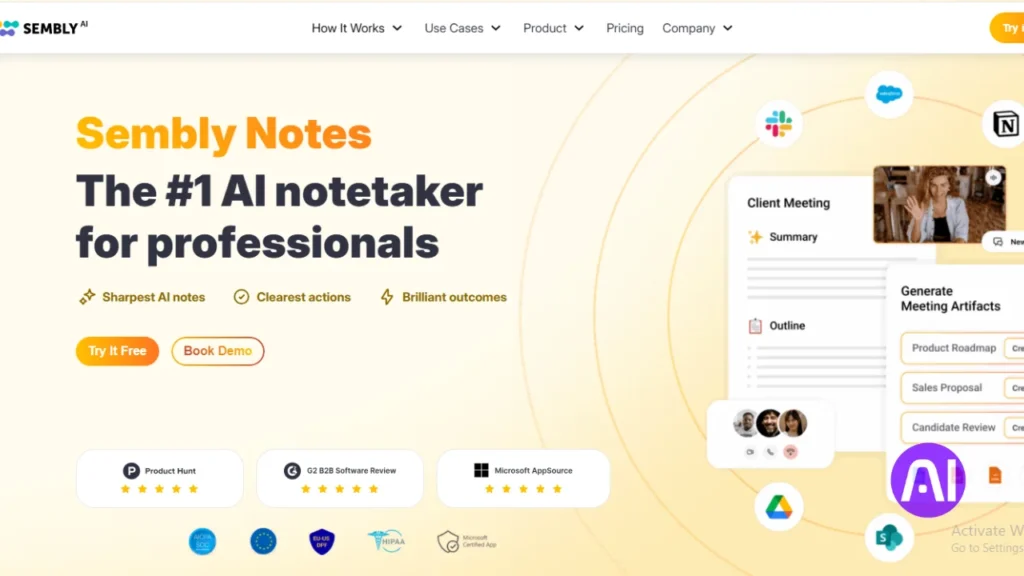
Sembly is a voice-driven meeting companion that turns speech into structured notes and analytics. I use it to surface action items, spot risks, and score meeting health so follow-up is clear and fast.
Overview
Sembly listens to calls and produces searchable text, highlights blockers, and tracks who owns each task. It links into Google Calendar and Outlook so captures start automatically.
Core features
- Action item tracking with assignees and tags.
- Risk and blocker detection plus meeting health scores.
- Calendar integrations, searchable text, and basic video support.
These features help me separate signal from noise. I tag items for easy creation of backlog entries and the system keeps decisions tied to names.
Pros and cons
- Pros: strong analytics and structured follow-through that fit agile teams.
- Cons: tuning the model to recognize internal names and varied voices takes time.
- Plans: the free plan gets you started; paid tiers add access controls and advanced features.
Best for
I recommend Sembly for agile ceremonies, product roadmapping, and startups that need action-oriented notes. Use calendar hooks and link action items to your backlog to avoid double entry.
| Feature | Benefit | Limit |
|---|---|---|
| Meeting health score | Coach rituals over time | Needs regular use to trend |
| Action tracking | Fewer missed tasks | May need manual tagging |
| Calendar sync | Auto capture sessions | Requires granted access |
5. Zoom AI Companion
Zoom’s built-in assistant captures live voice right inside my meeting window so I don’t lose focus. It records audio, transcribes speech in real time, and surfaces summaries and action items without extra downloads.
Overview
I use the companion because it runs in the same video interface I already know. A familiar button gives me quick access and the transcript appears on the same line as the meeting timeline.
Core features
- Live audio capture and real-time transcription during calls.
- Auto summaries and highlighted action items ready after the meeting.
- Automatic availability in the platform when calendar access is granted.
- Simple controls via a visible button and inline text results you can copy to docs.
Pros and cons
Pros: Convenience and low friction. I save clicks and keep my focus, which cuts context switching across a week.
Cons: If my team uses other video services, integration is limited. Plan eligibility affects who gets features and how minutes are counted.
Best for
I recommend this companion to teams standardized on Zoom and to leaders who want quick summaries of conversations without managing another login. Tip: enable summaries, check meeting access permissions, and confirm the button is visible before an important call.
| Feature | Benefit | Limit |
|---|---|---|
| Inline transcription | Copy text into docs fast | Requires granted access |
| Summaries & action items | Saves review time | Deeper analytics are limited |
| Built-in availability | No extra downloads | Plan-dependent access |
6. ElevenLabs
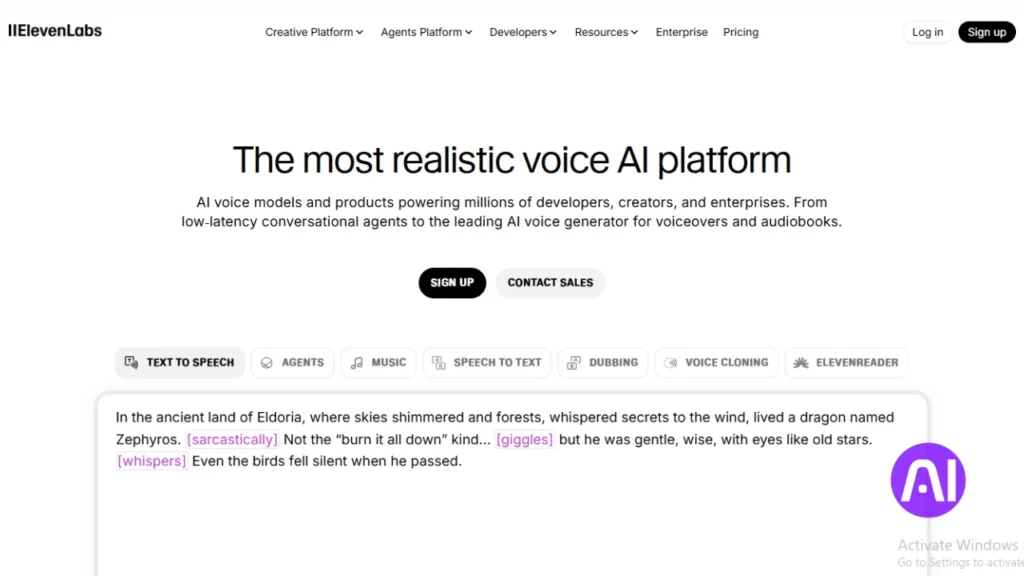
I often use ElevenLabs when I need fast, lifelike narration and a single studio to manage audio, music, and agent training. It feels like a full audio hub that handles instant speech, voice design, and the finishing touches I need for video and podcasts.
Overview
ElevenLabs grew from a focused voice generator into a broad platform for creators. It supports instant speech, audiobook workflows, music and sound effects, and a curated library of voices I can clone or adapt.
Core features
- Instant speech generation and an editor that fine-tunes delivery and words.
- Voice design and cloning plus a Studio interface with controls like stability and style exaggeration.
- Music and sound effects generation, audiobook tools, and presets to speed project creation.
- A v3 alpha model that lets me direct action, tone, and emotion using bracketed words.
- Conversational agent building with training on company data, plus Zapier and API integrations.
Pros and cons
Pros: very natural voices, a large voice library, and flexible studio controls that help match tone across scenes.
Cons: occasional inconsistencies in long narration and a learning curve when choosing the right model or settings. Minutes and credits matter for longer projects; the free plan helps test features and the starter plan adds commercial use.
Best for
I recommend ElevenLabs when I need realistic voice creation for marketing, narration, or agent prototypes. It fits small studios that want music and sound alongside speech, and product teams that need a repeatable studio workflow. Tip: use the Studio button layout to tweak tone and stability, then save presets to speed repeated scripts. Zapier and the API make it easy to route text sources straight into finished audio for video and publishing.
| Feature | Why it matters | Limit |
|---|---|---|
| Studio controls | Adjust tone and style quickly | Requires experimentation |
| v3 alpha model | Direct emotion per line | Still evolving |
| Free plan / Starter | Test voices and small projects | Paid plan needed for commercial use |
7. Speechify
I use Speechify when I want narration that lands naturally without heavy editing. It nails cadence in one pass so the audio feels human and easy to follow.
Overview
Speechify focuses on lifelike delivery and quick turnaround. The studio lets me tweak speed, pitch, and pauses so a single voice can match different tones across projects.
Core features
- Studio controls for speed, pitch, volume, custom pronunciation, and pause placement.
- An editor that supports quick changes inside a project and saves presets.
- Slide-based video assembly with background music and a studio button to switch voices and preview delivery.
- Free plan includes studio credits and access to many voices to test quality before upgrading.
Pros and cons
Pros: natural cadence, many voices to choose from, and an editor that speeds batch content production.
Cons: emotional nuance can vary by voice, so I test selections for tone and quality. Upgrading the plan adds higher-fidelity voices and more studio credits.
Best for
I recommend Speechify for creators who need fast narration for explainer video, short podcasts, and training content with minimal polish. It also fits teams that want a simple studio workflow and consistent words across multiple outputs.
Tip: save editor presets, dial tone with pitch and pauses, and keep music levels low so the voice stays front and center. Export multiple voices within one project when roles or styles change to avoid rework.
| Feature | Benefit | Limit |
|---|---|---|
| Studio controls | Match tone and pacing quickly | Requires testing per voice |
| Slide video + music | Produce short video content in one place | Music must be balanced to keep voice clear |
| Free plan credits | Try many voices at no cost | Credits run out on heavy use |
8. Plaud Note Pro
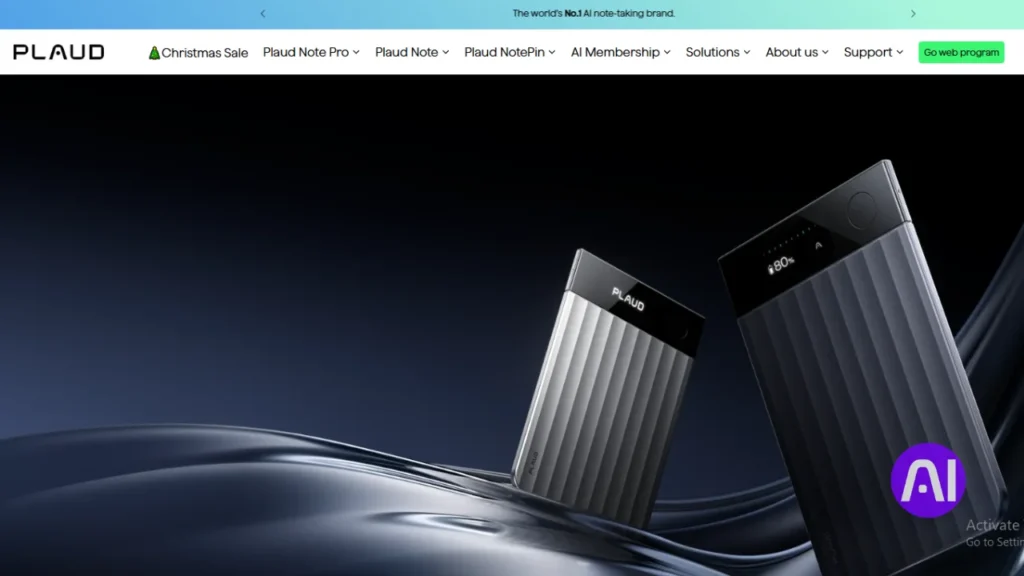
I tried Plaud Note Pro when I needed a portable option that captures studio-grade audio and turns it into searchable notes without a laptop. It blends hardware clarity with quick upload and secure handling of sensitive speech.
Overview
Plaud Note Pro is a dedicated hardware note taker with four MEMS microphones and studio-grade capture. It uses onboard AI noise isolation and can switch automatically between phone calls and in-person sessions.
Core features
- Four MEMS mics and studio-grade recording hardware for better audio quality.
- AI noise isolation that reduces background sound in crowded rooms.
- Automatic mode switching between call capture and live meetings.
- Enterprise-grade compliance: ISO 27001, ISO 27701, GDPR, HIPAA, SOC 2, and EN 18031.
Pros and cons
Pros: the device improves voice pickup in noisy spaces and produces clearer audio than most phones. Portability means I record without opening a laptop, and app access makes upload to transcripts easy.
Cons: charging cycles and maximum hours of use matter on long days. You trade pure software convenience for a physical option that needs power and occasional file import to my workflow.
Best for
I recommend Plaud Note Pro for consultants, healthcare providers, and mobile professionals who need dependable speech capture. It’s a solid option when video tools run on a separate machine and hardware boosts capture quality.
Tip: place the device on a stable surface near speakers, avoid handling during capture, and label uploads immediately so notes remain searchable. To explore the product I tested, see this Plaud Note Pro option.
| Feature | Why it matters | Limit |
|---|---|---|
| Four MEMS mics | Clearer multi-directional pickup | Requires correct placement |
| AI noise isolation | Cleaner speech in noisy rooms | May trim faint background cues |
| Compliance certifications | Safe for sensitive notes | Enterprise setup may be needed |
Conclusion
My goal here is to help you pick a platform that turns spoken lines into useful text without fuss.
I recap how each option handles voice, speech accuracy, text cleanup, and overall quality so you can choose with confidence.
I used a consistent section structure so comparing plan limits, commercial use allowances, and integrations is quick.
Next steps: shortlist two or three finalists, run short trials with your own calls, upload audio samples, and train custom vocabulary where needed.
Consider music and simple video assembly if you need end-to-end project output, or choose a hardware option if hours and capture quality matter.
Prioritize security and compliance, set a trial timeline, and build a project checklist so transcripts become searchable content that saves time and keeps work aligned.
FAQ
What does “voice recording” cover today?
I mean more than just raw audio; it includes speech capture, automated transcription, searchable notes, and audio editing. Modern platforms convert spoken words into text, identify speakers, and let me jump to key moments in meetings or lectures.
How do I choose the right recorder for meetings and interviews?
I look at audio clarity, transcription accuracy, speaker separation, and integrations with calendars and collaboration apps. I also check privacy controls and whether I can export transcripts for commercial use or team sharing.
Are these services secure enough for confidential calls?
Many vendors offer end-to-end encryption, SOC 2 compliance, and admin controls. I always verify the provider’s security whitepaper, data retention settings, and whether they allow on-premise or private cloud options for sensitive content.
Can I use transcripts for commercial projects or training models?
It depends on the platform’s licensing. I read the terms of service to confirm commercial rights and model-training permissions. Some plans explicitly allow reuse and redistribution; others restrict commercial usage unless you upgrade.
How accurate are automated transcripts for multi-speaker meetings?
Accuracy varies by mic quality, background noise, and the model. With clear audio and speaker labeling, I often see 85–95% accuracy. However, accents, crosstalk, and technical jargon may require manual edits.
Do these platforms support uploading existing audio or video files?
Yes. Most services accept uploads in common formats and return transcripts, summaries, and timestamps. I check file size limits, turnaround time, and whether the platform preserves speaker metadata on import.
Can I edit audio and correct transcripts within the app?
Many tools include inline editors that let me play audio while editing the transcript, cut out sections, and export polished audio or text. This saves time compared with separate tools for editing and transcription.
What about transcription languages and accents?
Top platforms support multiple languages and dialects, but performance differs. I test with representative samples of the languages and accents I need to ensure acceptable accuracy before committing to a plan.
Is there a free tier I can try before paying?
Most providers offer free plans or trials with limits on minutes, storage, or features. I recommend testing core workflows; recording, transcription, export—on the free tier to assess fit before upgrading.
How do pricing and minutes work across plans?
Pricing models vary: some charge by minutes transcribed, others by seats or features. I compare per-minute rates, included hours, and overage fees, plus whether advanced features like speaker ID or commercial licensing require higher tiers.
Can these platforms generate summaries and action items?
Yes, many deliver automatic summaries, highlights, and speaker-attributed action items. I still review them, but they cut my review time drastically and help me share clear follow-ups with teams.
Do these services integrate with Zoom, Teams, or calendar apps?
Integrations are common. I connect platforms to Zoom, Microsoft Teams, Google Calendar, and Slack to auto-capture meetings, sync transcripts, and push notes to my workflow tools for immediate access.
What audio hardware improves results?
I get better transcripts with dedicated mics—USB or XLR condensers, headset mics for remote speakers, and meeting room arrays for in-person conferences. Good positioning and noise reduction matter more than expensive gear.
How do I handle speaker identification and diarization?
Some platforms auto-diarize and let me label speakers post-meeting. For high-stakes recordings, I use registration features or pre-meeting speaker mapping so the system assigns names correctly during transcription.
Can I train voices or create synthetic speech legally?
Services like ElevenLabs offer voice cloning under explicit consent rules. I only train or synthesize voices when I have written permission, and I check licensing terms to ensure commercial use is allowed and ethical standards are met.
What file formats can I export?
Common exports include TXT, DOCX, SRT, VTT for captions, and MP3 or WAV for audio. I choose the format that fits my publishing workflow—text files for editors, SRT/VTT for video, WAV for high-quality audio reuse.
How do platforms handle background music or noisy environments?
Advanced noise suppression and separation models help, but heavy music or distant speakers reduce accuracy. I try to capture audio as cleanly as possible and use post-processing tools when needed to improve clarity before transcription.
Will using these services save me time editing and note-taking?
Yes. Automated transcripts, summaries, and highlighting cut my manual work significantly. I spend less time transcribing and more time acting on insights, especially when the tool integrates with my task and calendar apps.
How do I export data for compliance or archiving?
Most platforms let me export raw audio, full transcripts, and metadata. I also set retention policies and request data exports via admin consoles to meet legal or archival requirements.
Which platforms are best suited for journalists, researchers, or podcasters?
I recommend evaluating based on needs: journalists and researchers often favor transcription accuracy and searchability; podcasters look for audio editing and high-fidelity exports; teams prioritize integrations and meeting summaries. Test each tool with your typical workflow to decide.