I set out to build a clear roundup of dedicated platforms that let me schedule and manage tasks with less fuss. I focus on nine best AI tools for task management, including Motion, Taskade, ClickUp, Todoist, Wrike, Asana, TimeHero, Trevor AI, and Xmind AI.
These apps use intelligent scheduling, natural language input, and calendar sync so I can turn a long list into a realistic day. Motion gets special mention for its prioritization, calendar integration, team features, and flexible rescheduling, with plans that shift between free tiers and paid options like Motion Individual at $19 per month annually and Team at $12 per user per month annually.
I tested each platform on dynamic scheduling, project visibility, templates, and how well it supports individuals and teams. Every review follows the same format: a short overview, core features, pros, cons, and a best-for note to help you pick one app fast and start executing with confidence.
Key Takeaways
- I evaluated nine best AI tools for task management that focus on intelligent scheduling and collaboration.
- Motion stands out for prioritization, calendar sync, and reasonable monthly pricing tiers.
- The apps help translate a long list into a realistic day by weighing time and context.
- Each tool review uses the same structure to make comparisons simple and fair.
- This guide targets users in the United States and reflects common local integrations.
Why AI task managers matter right now
I rely on best AI tools for task management to turn noisy work into a clear daily plan. These systems analyze my patterns, deadlines, and priorities so scheduling happens automatically. That saves mental energy and keeps my lists from becoming a source of stress.
From cognitive load to clarity: how AI reduces decision fatigue
I find that intelligent scheduling cuts my cognitive load by ordering tasks into a realistic sequence. Natural language entry lets me add an item the way I speak, so I capture context fast without fiddling with forms.
Over time the software learns my pace and refines time estimates. The result is less second-guessing and more focused work at times when I have the most energy.
Today’s work reality in the United States: complex projects, shifting priorities
U.S. teams juggle complex projects, sudden changes, and tight deadlines. An assistant that flags at-risk items and nudges adjustments keeps a team aligned when plans shift midday.
That coordination reduces rework and improves the overall experience of task management while preserving the human context I still control.
| Benefit | How it helps | Impact | Metric |
|---|---|---|---|
| Productivity | Prioritized lists fit my day | More finished work | Completed tasks / time |
| Scheduling | Automated time slots | Fewer conflicts | Calendar free time |
| Collaboration | Visible dependencies | Less rework | On-time projects |
What AI task managers are and how they work
I started using platforms that parse plain text and slot real work into my calendar. These systems turn casual notes into clear tasks and reasonable time blocks without extra clicks.
Scheduling, prioritization, and natural language input explained

Natural language parsing reads dates, times, labels, and priority hints from a quick sentence. The platform creates structured tasks with deadlines, estimated effort, and tags.
Scheduling scans my calendar for gaps and places work into time blocks that match urgency and effort. Prioritization ranks items by deadline, importance, and sequence so the top tasks get the best slots.
How adaptive learning improves results over time
The software learns my pace and refines estimates based on history. Over time it reduces overbooking, flags at-risk items, and suggests dynamic rescheduling.
Integrated reminders and email triggers keep things moving. Automation chains can create tasks from messages and forms, so projects and subtasks respect dependencies without my micromanaging.
| Feature | How it helps | Outcome |
|---|---|---|
| Natural language parsing | Converts notes into structured tasks | Faster capture, fewer missed items |
| Automated scheduling | Finds calendar gaps and schedules work | Realistic daily plans, less conflict |
| Adaptive learning | Adjusts estimates from past behavior | More accurate plans, fewer reschedules |
Key evaluation criteria and buyer considerations
When I evaluate scheduling apps, I focus on how well they bend to real work and changing calendars. My scoring starts with the scheduler: can it sense deadlines, reshuffle tasks in real time, and keep my day realistic?
Intelligent scheduling and real-time rescheduling
I score intelligent scheduling by how accurately the software reads deadlines and adjusts when meetings or delays occur. A high score means fewer manual moves and less time wasted.

Integrations, mobile experience, and data privacy
Integrations must include calendar sync, email capture, and connections to collaboration apps so the team stays aligned. I test the mobile interface next: the app should be navigable on a phone without training.
Security matters. I look for encryption, admin controls, and clear U.S.-focused data policies.
Customization, templates, and collaboration features
I examine templates and workflows that cut setup time and keep projects consistent. Collaboration features like comments, file sharing, role-based access, and reporting that flags at-risk projects are critical.
| Criterion | What I check | Why it matters |
|---|---|---|
| Scheduling | Adaptation to calendar and deadlines | Realistic days, fewer reschedules |
| Integrations | Calendar, email, collaboration | Seamless capture and sync |
| Customization | Templates, priority rules | Faster onboarding, consistent workflows |
| Security | Encryption, admin controls | Compliance and trust |
Finally, I weigh features against price. The right option unlocks real value when the software saves time and improves project outcomes.
Best AI Tools for Task Management in the United States today
My approach was practical: import live projects, use each app for weeks, and note what worked in an active calendar. I focused on dedicated platforms that promise intelligent scheduling and real integration with daily workflows.
How I tested and compared each app
I signed up for trial accounts and imported tasks and projects from real work. And I used Motion, Taskade, ClickUp, Todoist, Wrike, Asana, TimeHero, Trevor AI, and Xmind AI for at least a week each.
I checked intelligent scheduling, calendar and email sync, mobile usability, customization, and availability of features across free and paid tiers. I measured how quickly a new user can get productive and how reliably the scheduler survives a busy U.S. workday.
- I validated integrations with calendars, email, and collaboration hubs.
- I tracked standout features that influenced rankings and practical value.
- I noted pricing options and where advanced features appear by month or plan.
| Test area | What I measured | Outcome |
|---|---|---|
| Scheduling | Accuracy and rescheduling | Realistic daily plans |
| Integrations | Calendar, email, hubs | Seamless capture and sync |
| Usability | Time to productive | Ease for new user |
1. Motion
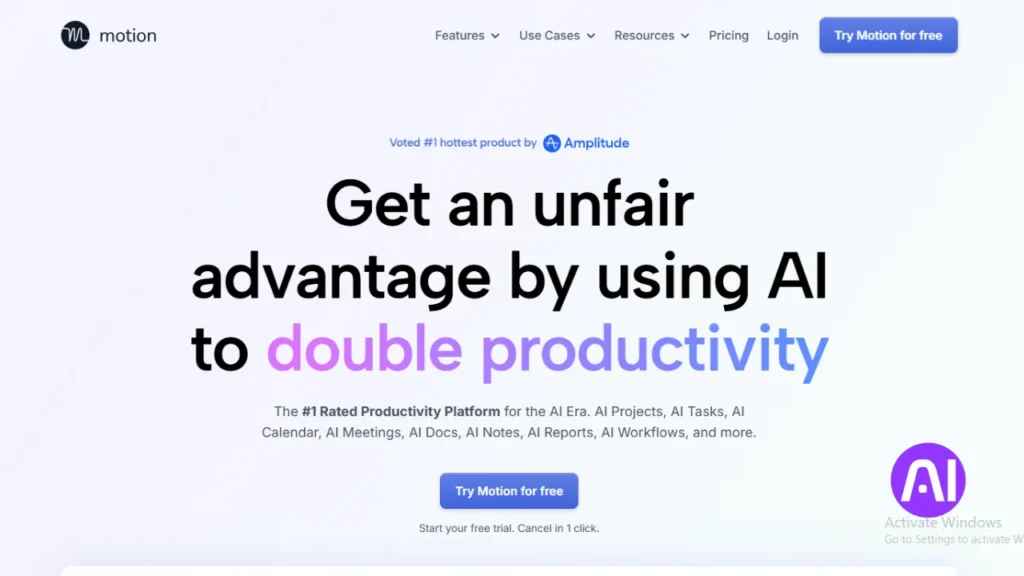
Motion turned my backlog into a living calendar that actually reflects how I work each day. It places tasks into time blocks, adapts when meetings appear, and keeps my schedule realistic without constant tweaks.
Overview
I use Motion when I want automatic prioritization and calendar-first planning. The platform syncs with Google and Apple calendars and auto-reschedules missed items to match my availability and preferences.
Core features
- Auto-scheduling that finds gaps and slots tasks into my day.
- Intelligent prioritization and dynamic rescheduling when plans change.
- Calendar integration with Google and Apple, plus project breakdowns and dependencies.
Pros
Motion reduces decision fatigue by deciding when to do each task. I get clearer days and fewer manual moves, and the scheduling engine splits long work into manageable segments.
Cons
There is a learning curve in the first week, and adding tasks manually can feel slow until you build habits. Some heavy project setups require extra time to configure.
Best for
I recommend Motion to individuals and small teams that want hands-off scheduling, robust calendar integration, and automatic adjustments when priorities shift. Pricing starts at 19 dollars per month billed annually for an individual, with team plans priced per user per month.
| What it helps | How it works | Impact |
|---|---|---|
| Day planning | Auto-schedules tasks into free time | More finished work each day |
| Team coordination | Assigns tasks to shared calendars | Fewer missed deadlines |
| Project tracking | Flags at-risk items and reschedules | Protected milestones and clearer timelines |
2. Taskade
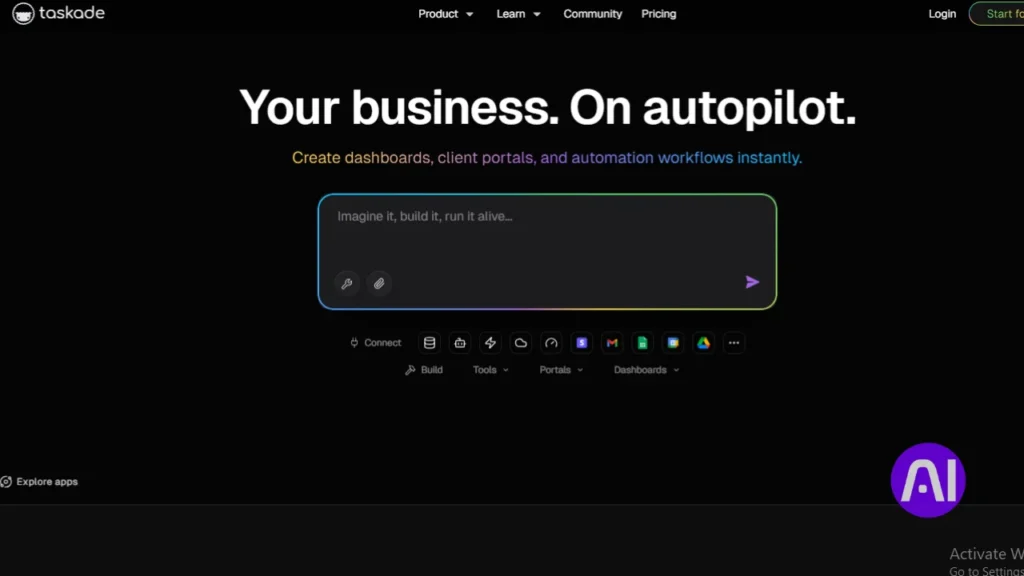
When collaboration matters, I turn to platforms that let teams edit and plan in real time. Taskade is where shared lists, chat, and project boards live together in a flexible workspace.
Overview
I use Taskade when I want collaborative lists and projects with live editing and AI helpers inside a single space. It feels like shared docs that also act as a lightweight project planner.
Core features
- Real-time collaboration and live editing across teams.
- Large template library and AI agents to help create structured tasks.
- Automation rules to reduce repetitive steps and sync with email and calendars.
Pros
I like the templates, the instant co-editing, and how AI can suggest structure for complex task lists. Spinning up a team plan and inviting people takes minutes.
Cons
The breadth of features can overwhelm new users. The mobile experience lags behind desktop polish and needs simplification for some team members.
Best for
I recommend Taskade to teams that live in shared docs and chat and want fast setup. Plans include Free, Pro at 8 dollars per user per month billed annually, and Team at 16 dollars per user per month billed annually. For quick team onboarding and template-driven projects, check the guided task features at Taskade tasks.
| Plan | Strength | Drawback |
|---|---|---|
| Free | Quick trial and templates | Limited automation |
| Pro | Advanced features and AI agents | Requires learning curve |
| Team | Shared spaces and automation | Mobile needs polish |
3. ClickUp
I reach for ClickUp when a single workspace must handle complex projects and varied workflows. It combines project planning, documents, time tracking, and reporting so I do not hop between apps.
Overview
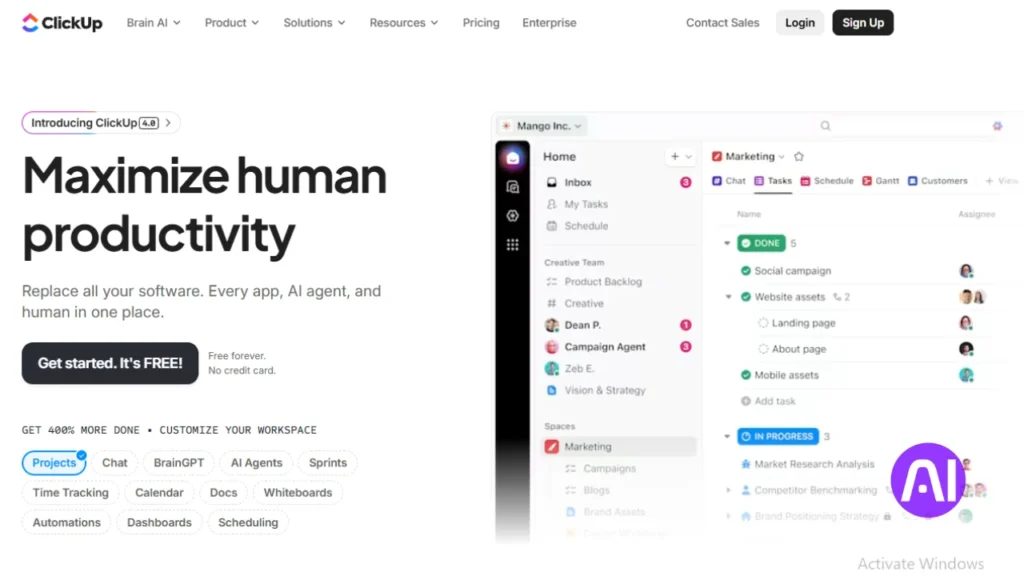
I use ClickUp when I need a flexible platform that can run projects, documents, time tracking, and reporting in one place. The interface is highly configurable so I shape spaces to match processes.
Core features
- Multiple views like list, board, and Gantt to visualize project progress.
- Custom fields and automation to reduce manual steps and speed task updates.
- ClickUp Brain provides summaries, automatic task prioritization, and connected search.
- Dashboards and reports that surface milestones, ownership, and at-risk items.
Pros
I like the depth of features and the power of workflows. Integration options helped me centralize updates from many apps and keep a single source of truth.
Cons
The breadth can feel bloated and notifications overwhelm unless you tune them. I also hit occasional bugs that slowed my day.
Best for
I recommend ClickUp to teams that need advanced project management and configurable workflows with strong reporting. Plans include Free, Unlimited at 10 dollars per user per month, Business at 19 dollars per user per month, and Enterprise custom. An AI add-on is available at 7 dollars per user monthly on paid plans.
| What it helps | How it works | Impact |
|---|---|---|
| Project visibility | Custom views and dashboards | Fewer missed milestones |
| Workflows | Automation and custom fields | Faster handoffs and fewer manual updates |
| Breakdowns | AI summaries and subtask generation | Quicker decomposition of large projects |
4. Todoist
I keep Todoist on hand when I need a fast, uncluttered way to capture what matters and move on. The app shines at plain-language entry and clear color-coded priorities that help me focus through a busy day.
Overview
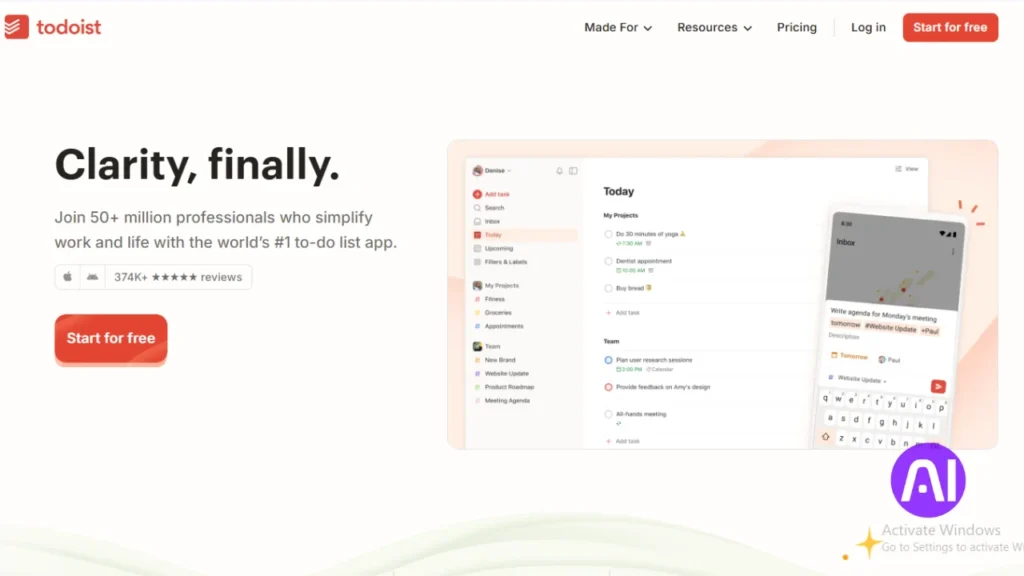
I reach for Todoist when I want a clean app to capture and organize a list quickly using natural language. It feels lightweight and reliable across phone and desktop so I add items wherever I am.
Core features
- Priority levels with color codes that keep my attention on urgent tasks.
- Labels, filters, and a calendar sync to track progress and schedule work.
- An AI assistant that suggests next steps, rewrites entries for clarity, and auto-generates sub-tasks.
Pros
The interface is easy and the learning curve is low. Natural language input makes adding tasks fast on any device.
Cons
Todoist lacks automatic rescheduling and has limited scheduling controls. Some advanced calendar views and durations sit behind paid plans.
Best for
I recommend Todoist for personal task management and small teams that want simplicity with light AI assistance. Plans include Free, Pro at 4 dollars per month, and Business at 6 dollars per user per month.
| What it helps | Key limit | When to pick |
|---|---|---|
| Daily capture and small lists | No auto-reschedule | Individuals who want speed and clarity |
| Priority tracking | Calendar features in paid tiers | Users who rely on color-coded priorities |
| Complex items | Advanced views cost extra | People who need light AI breakdowns and integrations |
5. Wrike
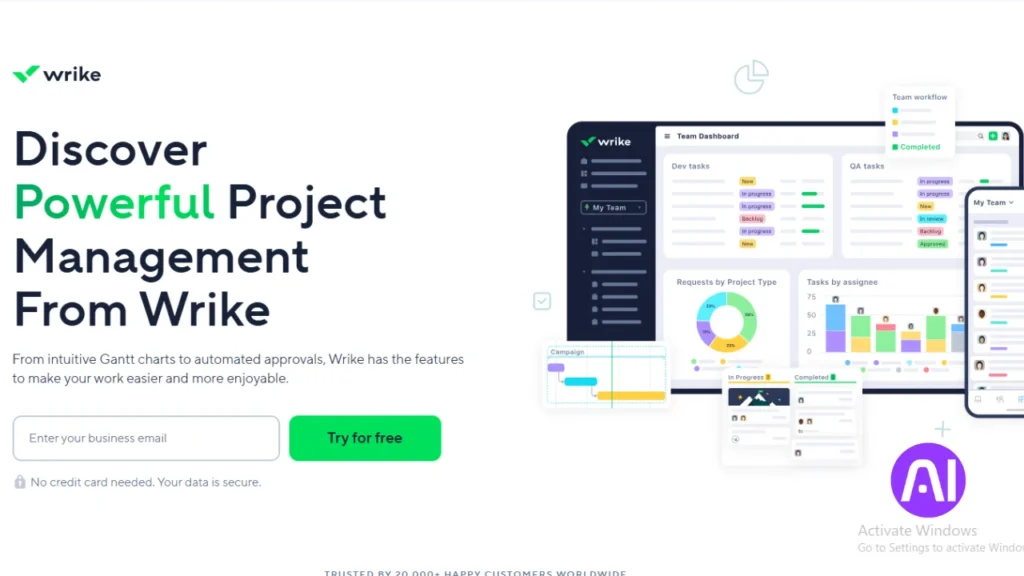
For large initiatives with many handoffs, I rely on a system that enforces structure and traceability. Wrike gives me enterprise-grade project and task control so teams move work through formal approvals and repeatable blueprints.
Overview
I use Wrike when I need reliable uptime and deep customization. The platform is built around governance, auditability, and repeatable workflows that suit agencies and mid-market organizations.
Core features
- Custom fields, request forms, and blueprints to templatize recurring work.
- Dashboards and analytics that surface risks, timelines, and performance trends.
- Calendar views and integrations with email and calendar systems for schedule visibility.
Pros
Wrike delivers strong customization and reliable performance. Blueprints let me standardize deliveries across teams. Reporting helps me spot at-risk projects quickly.
Cons
Initial setup can be time consuming and the learning curve is real. Support response times can lag during busy periods. The platform does not auto-adjust a daily schedule the way some auto-scheduling apps do.
Best for
I recommend Wrike to mid-market and enterprise teams that need governance, audit trails, and consistent workflows. Pricing starts at 9.80 dollars per user per month for Team, 24.80 dollars per user per month for Business, with Enterprise available as a custom plan.
| Focus area | Why it matters | How Wrike helps | Typical user |
|---|---|---|---|
| Governance | Auditability and compliance | Blueprints and request forms | Agencies, regulated teams |
| Cross-team work | Multiple handoffs and approvals | Dashboards and approval flows | Large project groups |
| Reporting | Early risk detection | Analytics and status views | PMOs and operations leaders |
6. Asana
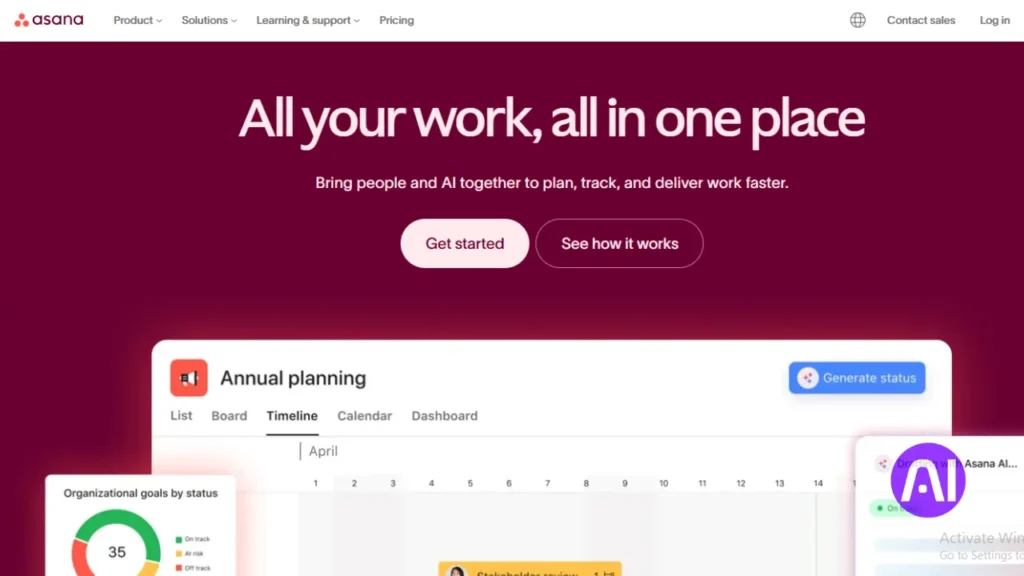
Asana gives me a straightforward way to map tasks and timelines so nothing slips between people. The interface is clean and makes project status, assignees, and deadlines visible at a glance.
Overview
I like Asana for its intuitive layout that scales from solo lists to multi-team projects. It helps me see who owns what and when without hunting through emails or chat.
Core features
- Customizable workflows with lists, boards, and timelines.
- Automation rules and collaborative comments to speed handoffs.
- Templates, search and filters to surface the tasks I need today.
Pros
Onboarding is simple and the views are clear. Workflows adapt to growing teams and support standardization across projects.
Cons
It does not auto-reschedule overdue tasks, so manual adjustments take time. Heavy use can cause occasional access or view slowdowns.
Best for
I recommend Asana to teams that want a familiar platform with strong collaboration and visual planning. Pricing ranges from Personal free, Starter at about 10 dollars per user per month, to Business near 25 dollars per user per month.
| Strength | Why it matters | Typical user |
|---|---|---|
| Visual planning | Timelines and boards clarify priorities | Cross-functional teams |
| Automation | Standardizes handoffs and saves time | Operations and project leads |
| Search & templates | Speeds setup and finds tasks quickly | Users managing recurring projects |
7. TimeHero
I pick TimeHero when I need automatic planning that actually fills my day without constant nudges.
Overview
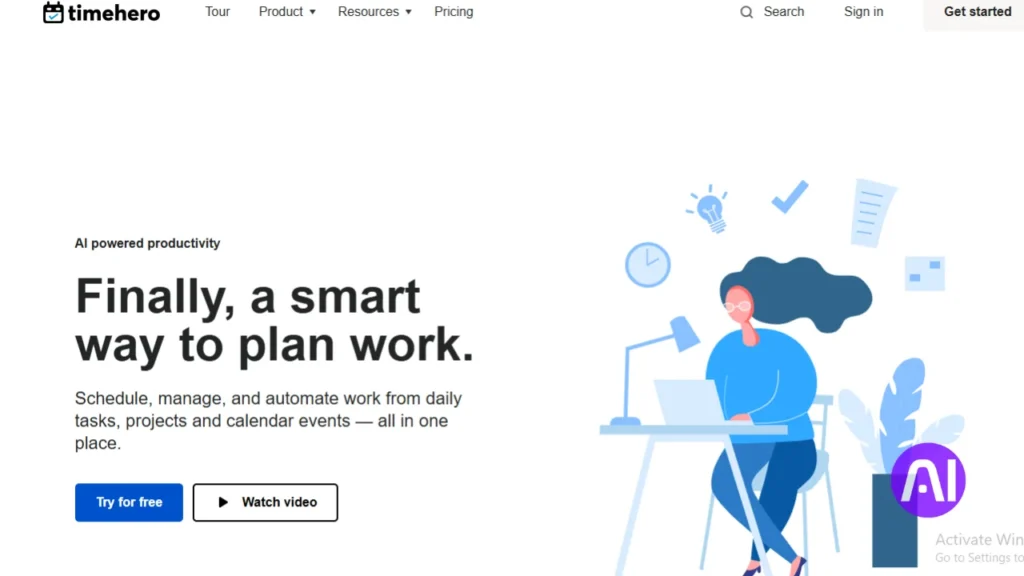
TimeHero auto-schedules tasks based on my availability, priorities, and calendar events. It adapts when meetings move and flags at-risk items so I can act before deadlines slip.
Core features
- Auto-scheduling that finds open time and slots work into my day.
- Risk detection that alerts me to slipping tasks and overloaded time.
- Smart workflow templates and dependencies to speed project setup.
- Built-in time tracking and forecasting to track effort and predict delivery.
- Calendar sync with Google and Microsoft and simple email capture.
Pros
It forecasts workload well and balances team capacity with realistic timelines. Templates and dependencies cut setup time and reduce sequencing errors.
Time tracking feeds automated timesheets. The result is clearer planning and better productivity across projects and teams.
Cons
Some teams need a tuning period to adapt templates. Advanced reporting and deeper analytics sit behind higher tiers.
Best for
I recommend TimeHero to teams that want automatic schedules and forecasting to keep projects on track. Pricing starts at 5 dollars per user per month for Basic, 12 dollars per user per month for Professional, and 27 dollars per user per month for Premium.
| Plan | Strength | Note |
|---|---|---|
| Basic: $5 / month | Auto-scheduling and calendar sync | Good for individuals and small teams starting out |
| Professional: $12 / month | Risk detection and templates | Balanced features for growing teams |
| Premium: $27 / month | Advanced reporting and forecasting | Best for teams that need deep forecasting and timesheets |
8. Trevor AI
I often choose apps that turn vague to-dos into clear blocks of focused work. Trevor AI stands out when I want time blocking that learns how I spend my hours and helps me build a reliable day.
Its calendar-native scheduling syncs live with multiple calendars so tasks appear where I already manage my time. The platform reports users complete about 85 percent of assigned tasks versus 41 percent in traditional to-do apps.
Overview
I pick Trevor AI when I need guided scheduling that adapts to my patterns. It fills free slots, nudges smart rescheduling, and sends daily agenda emails that keep me honest about my plan.
Core features
- Customized scheduling suggestions that learn from your behavior.
- Live calendar sync across accounts and smart rescheduling.
- Focus mode with a timer and note field plus daily coaching emails.
- Pro plan with multiple calendars, analytics, and deeper suggestions.
Pros
The completion uplift is compelling, and the daily agenda emails help me stick to the plan. Focus mode reduces distraction while notes keep context nearby.
Cons
Accuracy drops if I add vague durations or keep a cluttered calendar. It needs clean inputs to schedule well.
Best for
I recommend Trevor AI to an individual who wants guided time blocking and coaching to boost follow-through. The Pro plan at about 3.99 dollars per month adds multiple calendars and analytics that justify the fee if you rely on schedule-driven workflows.
| What it improves | Key feature | When it matters |
|---|---|---|
| Completion rate | Smart time blocking | Users who struggle to finish daily tasks |
| Focus | Focus mode with timer | When deep work windows are needed |
| Planning accuracy | Live calendar sync | Users juggling multiple calendars |
| Accountability | Daily coaching emails | People who benefit from a morning agenda |
9. Xmind AI
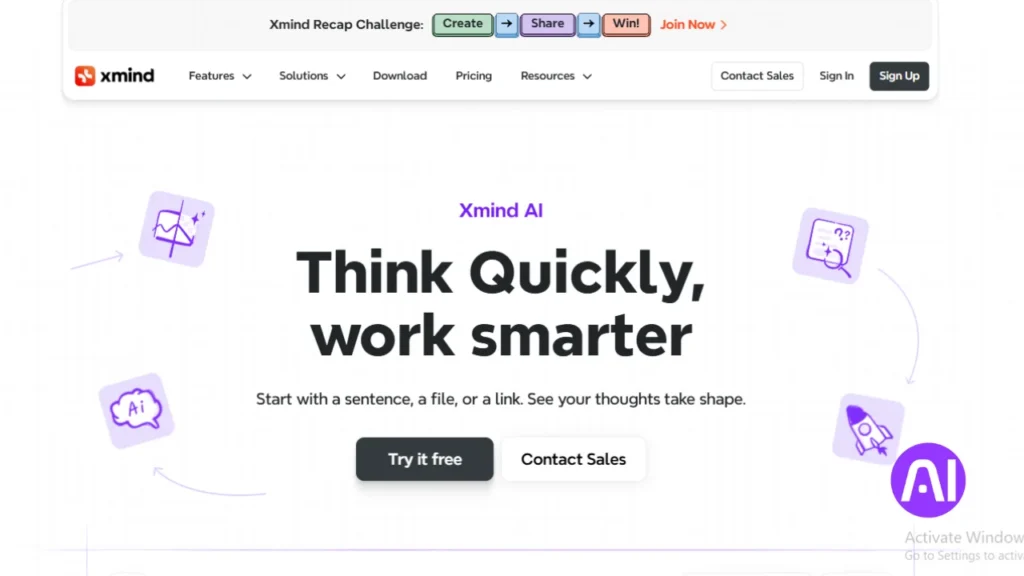
I use visual maps when I need to turn fuzzy goals into a clear list of next steps. Xmind AI blends mind mapping with smart generation so ideas become actionable tasks and projects fast.
Overview
I use Xmind AI to move from brainstorm to a structured plan in minutes. It turns goals into to-do items and gives each project a visual map I can share with a team.
Core features
- AI-generated to-do lists from maps and goals.
- Brainstorming hub with real-time collaboration and cloud storage.
- AI Explain that clarifies ideas for cross-functional stakeholders.
Pros
Visual mapping helps me present complex projects and sell plans to stakeholders. The credit system keeps monthly costs predictable during planning-heavy months.
Cons
Xmind AI excels at ideation but works best paired with a scheduling platform when I need calendar-driven delivery or deep task tracking.
Best for
I recommend this platform for planning and ideation that needs a quick path from ideas to actionable lists. If you want a hands-on demo of project mapping, see the Xmind project update review here.
| Feature | Benefit | When to use |
|---|---|---|
| AI-generated lists | Turns ideas into clear items | Early planning and scoping |
| Real-time collaboration | Team alignment on concepts | Workshops and remote sessions |
| Cloud maps | Shareable visual plans | Stakeholder reviews and presentations |
Integrations, automation, and real-time scheduling
Linking calendars and email stops me from duplicating effort and keeps a real schedule intact. Integrations let incoming requests become scheduled work instead of notes that get lost.
I use calendar and email sync to capture tasks from messages and drop them into an active schedule. Motion, for example, connects with Google, Outlook, and Apple calendars, plus Gmail and Outlook 365, so items from my inbox appear as time blocks.
Calendars, email, and collaboration tools that amplify value
Automation chains reduce manual steps so tasks flow from intake to delivery. Zapier-style workflows create tasks from forms and chats, trigger approvals, and log completion for reporting.
- Connected search pulls context across apps so I find relevant docs and notes fast.
- Real-time scheduling checks calendars and moves tasks when meetings pop up to avoid conflicts.
- Collaboration integrations post updates where teams already work, keeping projects visible.
The time saved when apps talk to each other adds up. The best platforms balance automation with review options so I approve critical changes before they run.
| Capability | How it helps | Why it matters |
|---|---|---|
| Email capture | Turns messages into scheduled tasks | Fewer missed requests |
| Calendar sync | Places work into real time slots | Reduces double-booking |
| Automation chains | Moves tasks through intake to delivery | Saves daily admin time |
Quick checklist: ensure your stack supports email capture, calendar sync, and cross-app search. Add automation with safe review gates, and prioritize platforms that surface context from across projects.
Pricing snapshots and plan considerations
I pay close attention to cost tiers because they determine when key automation and schedule features appear. Below I map where free tiers end and paid plans begin, and how that affects daily work and team value.
Free tiers vs pro plans: where the real AI features unlock
Free plans let you test capture and basic views, but automation and advanced scheduling usually sit behind paid plans. Motion’s Individual plan is 19 dollars per month billed annually while its Team plan runs 12 dollars per user per month billed annually.
Taskade charges 8 dollars per user per month for Pro and 16 dollars per user per month for Team. ClickUp’s Unlimited is 10 dollars per user per month and Business is 19 dollars per user per month with an AI add-on at 7 dollars per user monthly.
Team needs, security, and total cost of ownership
Monthly fees are only part of the story. Onboarding, admin time, and migration add cost over the first year. I look at role permissions, encryption, and calendar and email integration depth before I upgrade.
- Small teams may favor Trevor Pro at about 3.99 dollars per month or Todoist Pro at 4 dollars per month.
- Growing teams often need Wrike or TimeHero plans with stronger governance; TimeHero ranges from 5 to 27 dollars per user per month.
- Xmind Premium runs near 8.25 dollars per month with a credit model useful for planning-heavy months.
| Platform | Common paid plan | Why upgrade |
|---|---|---|
| Motion | 19 / month (Individual) | Auto-scheduling and calendar sync |
| ClickUp | 10 / user / month (Unlimited) | Custom views and automation |
| TimeHero | 12 / user / month (Professional) | Risk detection and forecasting |
Match your plan to workflow maturity. Small monthly investments can yield hours saved each week when automation and schedule accuracy cut manual work.
Conclusion
I picked platforms that make tasks feel doable and turn a long list into a real plan. The right task app respects your time, reduces daily friction, and improves productivity without adding noise.
Prioritize scheduling, calendar sync, and automation when you test options. Start small with a core list and one calendar connected so the system can rebuild your day reliably.
Consider team needs, security, and budget as you scale. Run a short trial with live projects to check rescheduling behavior, reporting, and how well the app helps you track progress.
Consistent use beats constant search. Choose one tool, enable calendar and email capture, and iterate until your routine sticks and productivity improves.
FAQ
What makes modern task managers with AI-like features worth using now?
I see these platforms cutting down decision fatigue by automating scheduling, prioritizing work, and turning natural language into structured tasks. That saves me time and helps keep a clearer daily focus when projects and priorities shift.
How do these systems turn my text or email into actionable tasks?
Many use natural language processing to parse due dates, priorities, and subtasks from plain sentences. I type a quick note or forward an email, and the app suggests a task, assigns a date, and links it to a project so I spend less time entering details.
Can task apps actually reschedule my day when things change?
Yes. Intelligent scheduling features analyze task length, deadlines, and calendar availability to reorder work. I get nudges or automatic reschedules when meetings pop up or priorities shift, which keeps my plan realistic without manual juggling.
How do these platforms learn my preferences over time?
Adaptive learning tracks how I assign priorities, which time slots I use, and what I defer repeatedly. The system then personalizes suggestions like preferred work blocks or typical task durations so recommendations improve with use.
What integrations should I look for when choosing a platform?
I prioritize calendar sync, email, Slack, and cloud storage connections so tasks flow from my existing tools. API availability and Zapier or native automation also matter when I need custom workflows across apps.
Are there privacy or security concerns with intelligent scheduling features?
I always check data encryption, where data is hosted, and granular permission controls. For teams, SSO, role-based access, and audit logs are key to keeping sensitive project and people information safe.
How do I evaluate mobile experience and offline support?
I test mobile apps for quick task capture, reliable notifications, and editing while offline. A solid mobile experience means I can add or update tasks on the go and trust they sync when I’m back online.
When do templates and customization become essential?
Templates save time when work repeats; client onboarding, sprints, or content calendars. I look for customizable templates, fields, and views so the tool fits my process rather than forcing me to adapt.
Which features matter most for team collaboration?
Shared task lists, mentions, file attachments, and clear ownership matter most to me. Real-time updates, comment threads, and visual project views (boards, timelines) help the whole team stay aligned.
How should I compare pricing and plan tiers?
I compare free tiers for basic use, then check where advanced scheduling, automation, and admin controls appear in paid plans. Consider team size, required integrations, and whether advanced features justify higher tiers.
Can these apps replace a full project management platform for complex projects?
It depends. Some tools handle high-level planning and deep collaboration well, while others focus on personal productivity and daily scheduling. I match tool strengths to my project complexity and team needs.
How do I test an app before committing my team to it?
I run a short pilot with a small cross-section of users, import a sample project, connect key integrations, and simulate real workflows. That reveals gaps in UX, permissions, and automation before full rollout.
What common drawbacks should I watch for?
Overautomation that hides context, clunky natural language parsing, and limited customization are common issues. I also watch for slow sync, poor mobile apps, and missing enterprise security features.
Which scenarios are ideal for time-based automation like automatic rescheduling?
I use time-based automation when tasks have clear durations and deadlines like focused work blocks, recurring reporting, or client milestones. It helps me protect deep work while keeping deadline visibility.
How do I balance notifications so they help rather than distract?
I tune notification rules—only critical updates, daily summaries, and time-block reminders. That reduces noise while ensuring I don’t miss changes that affect priorities or deadlines.