If you’ve ever zoomed into a photo and thought, this should look better than it does, you’re not alone. Retouching is one of those tasks that sounds simple but quietly eats hours. Skin looks plastic. Colors drift. Details disappear. And suddenly you’re fighting the edit instead of enjoying it. That’s where best AI tools for photo retouching genuinely help.
Not the gimmicky ones. The tools that understand texture, light, and restraint. The kind that clean things up while keeping the photo human.
I’ve spent real time with these tools across different workflows. Social media images. Client photos. Product shots. And a few “can you fix this?” disasters. Below are the AI tools for photo retouching that actually earned their place.
My selection parameters
Before we dive in, here’s how I chose these tools.
I focused on tools that:
- Improve photos without making them look over-processed
- Save real editing time, not just clicks
- Work for different skill levels, from casual creators to professionals
- Offer control, not just one-click magic
- Feel reliable in everyday use
If a tool looked impressive but fell apart on real photos, it didn’t make the list.
The best AI tools for photo retouching
1. Adobe Photoshop (AI-powered features)
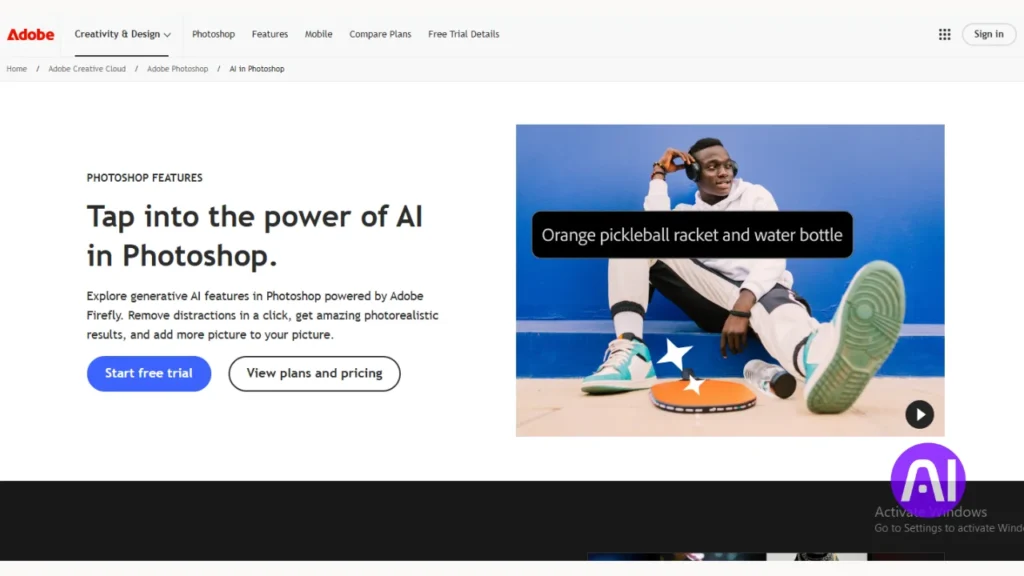
Photoshop is still the backbone of professional retouching. And with its AI features, it’s far less intimidating than it used to be.
What surprised me is how subtle the AI feels. Content-aware fill, neural filters, sky replacement. They don’t scream “AI.” They just quietly do the job so you can focus on the image.
Key features
- AI-powered object removal and background cleanup
- Neural filters for skin smoothing and portrait enhancements
- Advanced masking with subject detection
- Full manual control for precision edits
Best for: Professionals and advanced users who want AI assistance without losing creative control.
Pros and Cons of Adobe Photoshop
Pros
- Extremely powerful and flexible
- AI tools integrate naturally into workflow
- Industry-standard quality
Cons
- Steeper learning curve
- Subscription required
2. Luminar Neo
Luminar Neo feels like Photoshop’s calmer cousin. It’s built for people who want great results without technical overload.
The AI does most of the heavy lifting, especially for portraits and landscapes. Skin retouching, lighting fixes, and background adjustments feel fast and natural. Honestly, it’s one of the easiest tools to fall into.
Key features
- AI skin and face enhancement
- Relight AI for fixing bad lighting
- Background and object removal
- Layer-based editing without complexity
Best for: Photographers and creators who want professional-looking retouching without deep technical work.
Pros and Cons of Luminar Neo
Pros
- Very beginner-friendly
- Natural-looking results
- One-time purchase option
Cons
- Less granular control than Photoshop
- Can feel limiting for heavy composites
3. Topaz Photo AI
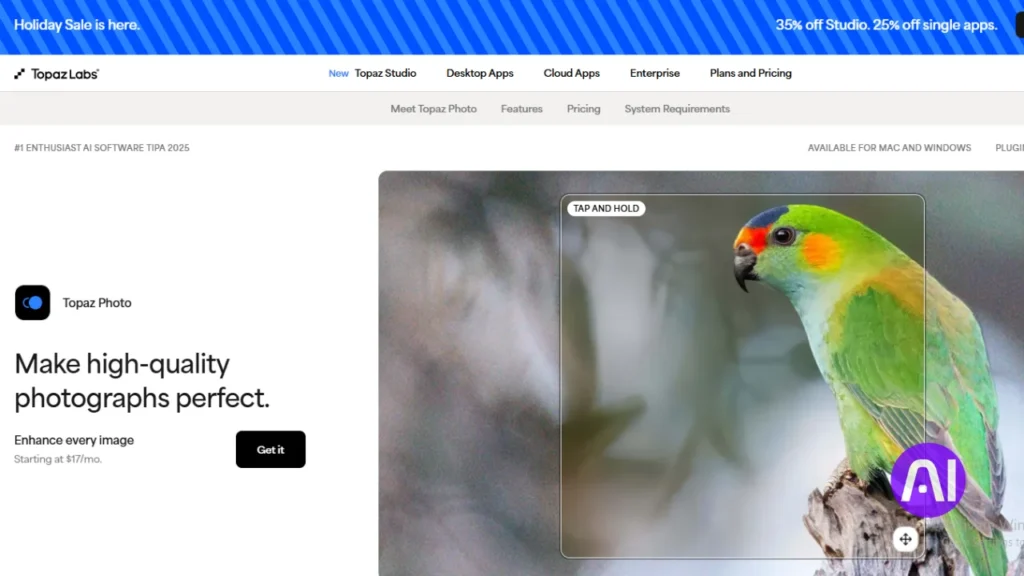
Topaz Photo AI focuses on one thing: improving image quality. And it’s very good at that.
I reach for it when photos are noisy, soft, or just slightly off. The AI sharpens details without creating halos and reduces noise without killing texture. It feels like rescue software for imperfect images.
Key features
- AI noise reduction
- Intelligent image sharpening
- Resolution upscaling
- Automatic subject detection
Best for: Fixing low-quality or technically weak photos.
Pros and Cons of Topaz Photo AI
Pros
- Excellent detail preservation
- Simple, focused interface
- Works well alongside other tools
Cons
- Not a full retouching suite
- Limited creative edits
4. PortraitPro
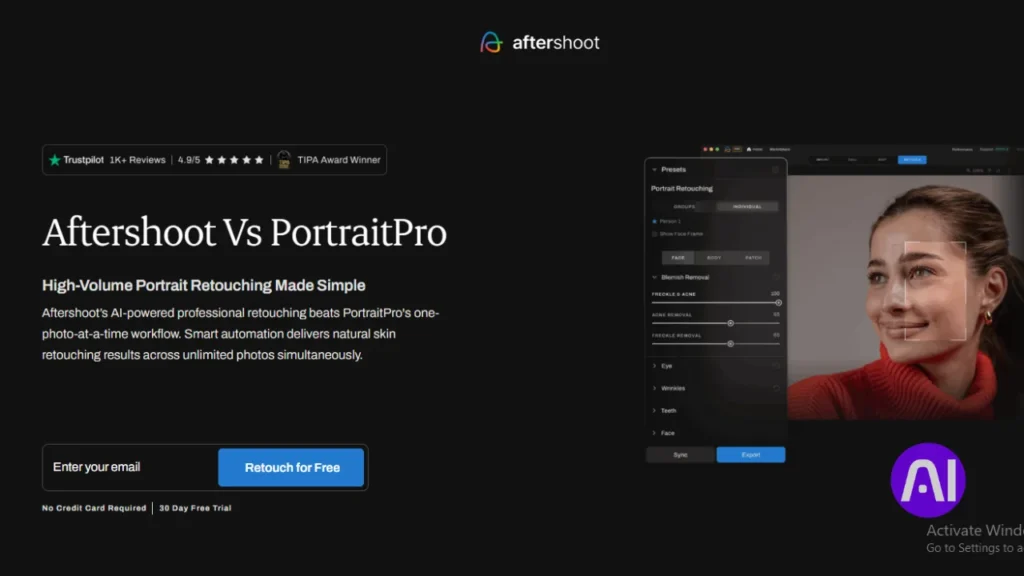
PortraitPro is unapologetically portrait-focused. And that’s a good thing.
This tool understands faces. Structure, lighting, skin texture. When used lightly, it can save massive time on portrait retouching. The key is restraint. Small adjustments go a long way here.
Key features
- AI face detection and mapping
- Skin smoothing with texture preservation
- Facial feature adjustments
- Lighting and makeup controls
Best for: Portrait photographers and headshot editors.
Pros and Cons of PortraitPro
Pros
- Designed specifically for faces
- Very fast portrait workflow
- Consistent results
Cons
- Easy to overdo effects
- Not suitable for non-portrait images
5. Fotor
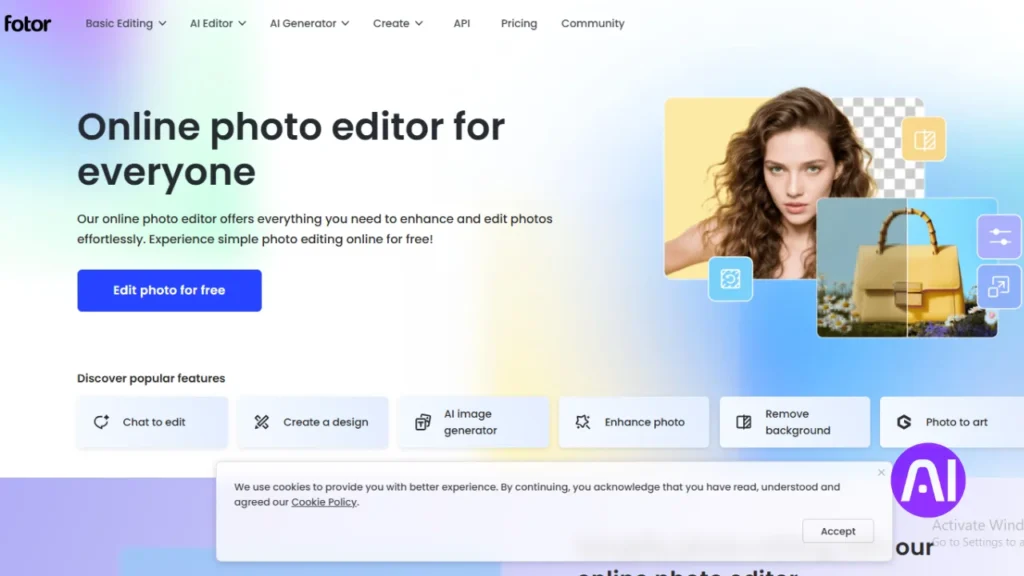
Fotor is a solid option if you want fast edits without opening heavy software.
It’s web-based, straightforward, and surprisingly capable. The AI retouching tools handle skin smoothing, blemish removal, and basic enhancements well. It’s not subtle like Photoshop, but it’s efficient.
Key features
- One-click AI photo retouching
- Skin smoothing and blemish removal
- Background remover
- Preset-based enhancements
Best for: Social media creators and small business owners.
Pros and Cons of Fotor
Pros
- Very easy to use
- No installation required
- Quick results
Cons
- Limited fine control
- Results can feel generic
6. Remini
Remini is all about restoration and enhancement.
Old photos. Blurry images. Low-resolution files. Remini uses AI to rebuild detail in ways that feel almost uncanny. It’s not for artistic retouching, but for clarity and improvement, it shines.
Key features
- AI photo enhancement
- Old photo restoration
- Face detail reconstruction
- Mobile-friendly workflow
Best for: Enhancing low-quality or old images.
Pros and Cons of Remini
Pros
- Extremely effective at restoration
- Easy mobile access
- Fast processing
Cons
- Limited creative control
- Can over-sharpen faces
7. Canva (AI photo editing tools)
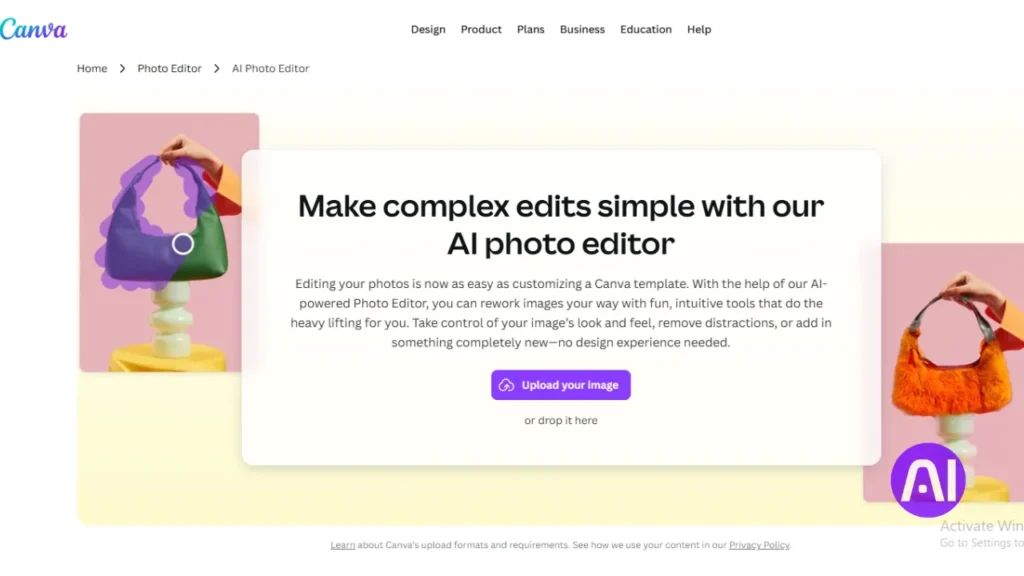
Canva isn’t a traditional retouching tool, but its AI photo features are better than many expect.
For quick cleanup, background removal, and light retouching, it’s convenient. Especially when the image is going straight into a design or social post.
Key features
- AI background remover
- Auto image enhancement
- Basic retouching tools
- Integrated design workflow
Best for: Non-designers and fast content creation.
Pros and Cons of Canva
Pros
- Extremely accessible
- All-in-one platform
- Fast for simple edits
Cons
- Not professional-grade retouching
- Limited image control
Comparing the best AI tools for photo retouching
Choosing the right tool depends on how deep you want to go. Here’s a quick side-by-side to make that easier.
| Tool | Best Strength | Skill Level | Ideal Use Case |
|---|---|---|---|
| Adobe Photoshop | Full control + AI | Advanced | Professional retouching |
| Luminar Neo | Natural AI edits | Beginner to intermediate | Everyday photography |
| Topaz Photo AI | Image quality repair | All levels | Fixing noisy or soft images |
| PortraitPro | Face retouching | Intermediate | Portraits and headshots |
| Fotor | Quick edits | Beginner | Social media and web |
| Remini | Restoration | Beginner | Old or blurry photos |
| Canva | Speed + design | Beginner | Content creation |
Which tool stands out?
If I had to pick one overall winner, it’s Luminar Neo. It hits the sweet spot between speed, quality, and ease of use. You get impressive AI photo retouching without feeling boxed in.
That said, Photoshop still rules when precision matters. Topaz Photo AI is unbeatable for image cleanup. And Fotor or Canva are perfect when time matters more than perfection.
AI photo retouching for beginners
If you’re new to retouching, start simple. Tools like Luminar Neo, Fotor, or Canva let you see results quickly without overwhelming settings.
Focus on light adjustments. Skin texture. Color balance. Avoid pushing sliders too far. Good retouching is usually invisible.
AI photo retouching for professionals
Professionals benefit most from AI that assists, not replaces. Photoshop paired with Topaz Photo AI is a powerful combo. Use AI for cleanup and enhancement, then refine manually. That’s how you keep your style intact while saving time.
Are AI photo retouching tools worth it?
Honestly? Yes. If used properly.
They don’t replace skill. They remove friction. And that’s the real value. Less time fixing. More time creating.
Final thoughts
The best AI tools for photo retouching aren’t about flashy transformations. They’re about control, realism, and speed.
Start with what matches your workflow. Test lightly. Build confidence. And remember, the goal isn’t perfection. It’s photos that feel right.
If you want a safe starting point, try Luminar Neo or Fotor. If you want total control, Photoshop still delivers. And if you’re rescuing bad images, Topaz and Remini will surprise you.
Pick one. Try it on a real photo. You’ll know quickly if it fits.
FAQs
1. Will AI make my photos look fake or like plastic?
It can if you use too much. To keep photos looking real, always turn the sliders down. Good AI retouching should be hard to see, so keep the natural skin texture visible.
2. Is AI photo retouching better than doing it by hand?
AI is much faster for simple tasks like cleaning up skin or removing backgrounds. However, doing it by hand gives you more control. Most pros use AI for speed and then fix small details themselves.
3. Do I need a fancy computer to use these AI tools?
Some tools, like Adobe Photoshop, need a strong computer to work well. Others, like Fotor or Canva, work in your web browser. This means you can use them on almost any laptop or tablet.
4. Can AI fix a photo that is very blurry?
Tools like Remini or Topaz Photo AI are great at fixing blur. They can add detail back into a face. But if a photo is extremely messy, even AI might not make it perfect.
5. Are my private photos safe when I upload them to AI tools?
Most famous tools are safe and do not share your images. However, you should always check the privacy settings. Some free apps might use your photos to train their AI if you do not opt out.
6. Can I use AI photo retouching for my professional headshots?
Yes, but you must be careful. AI can sometimes change how a person looks. For professional shots, only use AI to fix lighting or small spots. Do not let it change your actual face shape.
7. What is the easiest AI tool for a beginner to start with?
Luminar Neo and Canva are very easy to use. They have simple buttons that do the hard work for you. You do not need to be an expert to get a great result with them.
8. Do these AI tools cost a lot of money?
Some tools, like Fotor, have free versions. Others, like Photoshop, require a monthly fee. Many tools offer a free trial so you can test them before you spend any money.
9. Can AI remove people or objects from the background?
Yes, this is one of the best uses for AI. Tools like Photoshop and Canva can erase a stranger or a trash can from your photo. The AI then fills in the empty space perfectly.
10. Why should I use AI photo retouching instead of filters?
Filters change the whole photo at once and can look cheap. AI is smarter. It can find just the skin or just the sky and fix them without changing the rest of the image.