
I test best AI tools for image upscaling so designers, marketers, and photographers in the United States can pick the right software for high-resolution work.
Modern image upscaling replaces old interpolation that blurred edges and lost detail. Deep learning analyzes textures and edges to predict pixels and recover clarity. That matters when photos need to print or display at 4K and 8K.
I evaluate each tool against clear criteria: output up to 4K or 8K, format support like RAW, JPEG, PNG, batch handling for multiple images, speed, cloud and API options, and consistent quality results.
In this roundup I cover dedicated image upscalers used by pros: Pixelbin, Upscale.media, DeepImage, PhotoGrid, Pixelcut, Upscale Pics, Picsart, ON1 Resize AI, and Topaz Gigapixel AI. I tested real photos and measured sharpness, noise control, color accuracy, and processing times.
Scan each section for an overview, core features, pros and cons, and a clear “best for” line so you can match a solution to your workflow quickly.
Key Takeaways
- AI-based upscaling recovers detail better than traditional interpolation.
- Look for 4K/8K output, RAW support, batch processing, and API/cloud options.
- Pixelbin and Upscale.media handle large formats, batch jobs, and 8K output.
- I tested best AI tools for image upscaling using real photos and focused on sharpness, noise, and color fidelity.
- Ecommerce teams and photographers benefit most from these workflows today.
1. Best AI Tools for Image Upscaling: Pixelbin
I rely on hands-on testing to judge which upscalers deliver reliable, repeatable increases in resolution and detail. Pixelbin stood out during my tests for clean 4x enlargements that kept texture and handled noise well.

Overview
Pixelbin is a dedicated image upscaler built for throughput. It offers 2x, 4x, and 8x scaling so you can match output to final display needs. The interface is clean and easy to use, and new users get free credits on sign up.
Core features
- Scaling: 2x / 4x / 8x with up to 8K output when source size allows.
- Formats: JPG, PNG, WebP, HEIC without forced conversion.
- Workflow: batch processing, cloud integration, and API access for automation.
- Processing: fast turnaround with noise reduction that preserves edges.
Pros and cons
- Pros: consistent sharpness gains, good noise control, beginner-friendly interface.
- Cons: 8K depends on source; large batches may need paid tiers for high volume.
Best for
I recommend Pixelbin for teams that need repeatable image results and automated processes. It fits e‑commerce and creative pipelines that move many photos between apps while preserving quality and metadata.
| Spec | Details | Notes |
|---|---|---|
| Scaling | 2x, 4x, 8x | 8K when source allows |
| Formats | JPG, PNG, WebP, HEIC | No forced conversion |
| Workflow | Batch processing, Cloud, API | Good for automation |
| Quality | Noise reduction, preserved details | Ready for commercial use |
2. Upscale.media
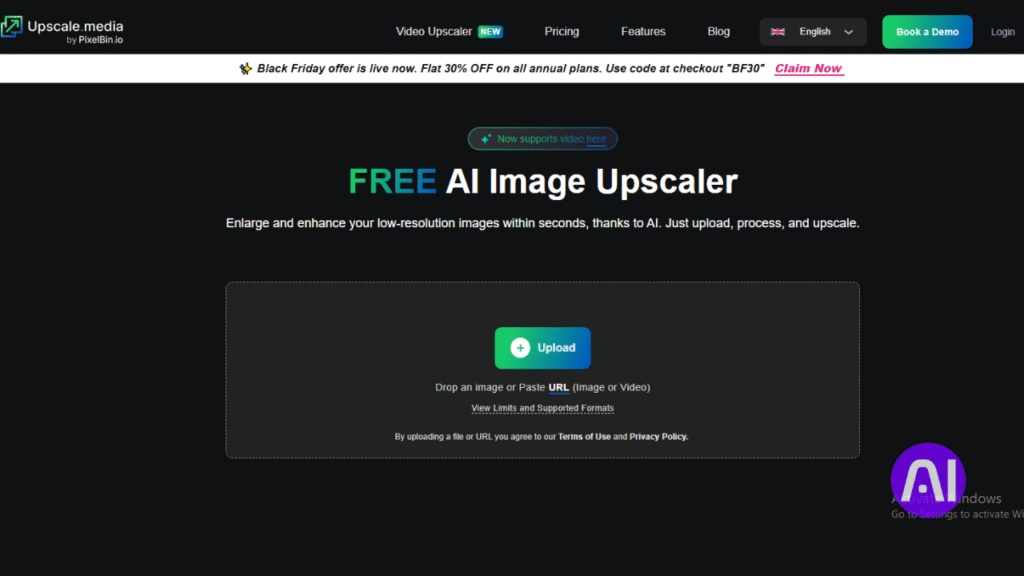
I tried Upscale.media in the browser to see how quickly it would turn small photos into publish-ready files. It kept the workflow simple: upload, pick 2x, 4x, or 8x, and download. No registration was needed for basic use, and results came without watermarks.
Overview
Upscale.media is a free, fast online upscaler that handles PNG, JPG, JPEG, and WEBP. The automatic enhancement reduces blur and sharpens edges. I found it handy when I needed quick high-resolution output for web or social posts.
Core features
- Up to 8x enlargement with instant preview.
- Bulk processing for multiple images and fast processing times.
- No signup, no watermark for basic jobs; supports common formats like png and jpeg.
- Automatic enhancement that reconstructs details and lowers noise while keeping clarity.
Pros and cons
- Pros: speedy browser workflow, free access, clean output for quick proofs.
- Cons: limited fine-tuning options compared with desktop software; large batches may need paid limits lifted.
Best for
I recommend Upscale.media to solo creators and small teams who need a reliable, fast enhancer for catalogs, social posts, and quick proofs. It sits alongside tools like Pixelbin when simplicity and speed matter most.
| Spec | Details | Why it matters |
|---|---|---|
| Scaling | 2x / 4x / 8x | Choose balance of file size, resolution, and visual quality |
| Formats | PNG, JPG, JPEG, WEBP | Easy handoff between design and delivery platforms |
| Workflow | Browser-based, no signup, bulk processing | Fast proofs and catalog handling on tight timelines |
| Enhancement | Deblur, noise reduction, edge sharpening | Improves details while keeping natural look |
3. DeepImage
I ran real-world photo tests on DeepImage to compare clarity and color handling at larger sizes.
Overview
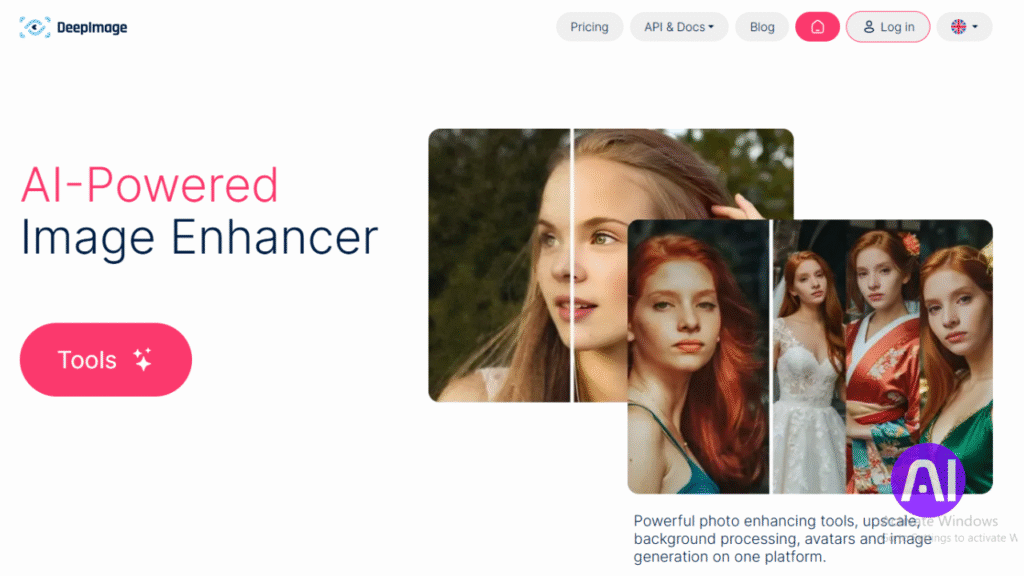
DeepImage is a flexible enhancer that gave me more control over the look of upscaled photos than many set-and-forget options. It offers 2x and 4x modes that match web needs and light print while keeping natural skin and texture.
The face enhancement option helped preserve facial features without creating halos. Noise reduction cleaned backgrounds but kept edges and small details intact.
Core features
- Scaling: 2x, 4x with natural results and balanced sharpening.
- Selective enhancement and portrait-focused processing for better skin tones.
- Formats: JPEG and PNG support; premium plans add API access via credits.
- Control over noise reduction, color balance, and final clarity.
Pros and cons
- Pros: reliable results on portraits, preserves fine details, balanced noise handling.
- Cons: deeper customization slows batch processing; credit pricing suits targeted jobs more than constant high volume.
Best for
I recommend this tool to creators who want fine control and consistent, clean results on photos and lifestyle images. It fits teams that prioritize quality and natural detail over pure speed.
| Feature | Details | Notes |
|---|---|---|
| Scaling | 2x / 4x | Good for web and light print |
| Formats | JPEG, PNG | Common delivery formats supported |
| Pricing | Credit-based premium model | Flexible for targeted projects |
| API & Workflow | API access on premium | Integrates into automation and processing pipelines |
4. PhotoGrid
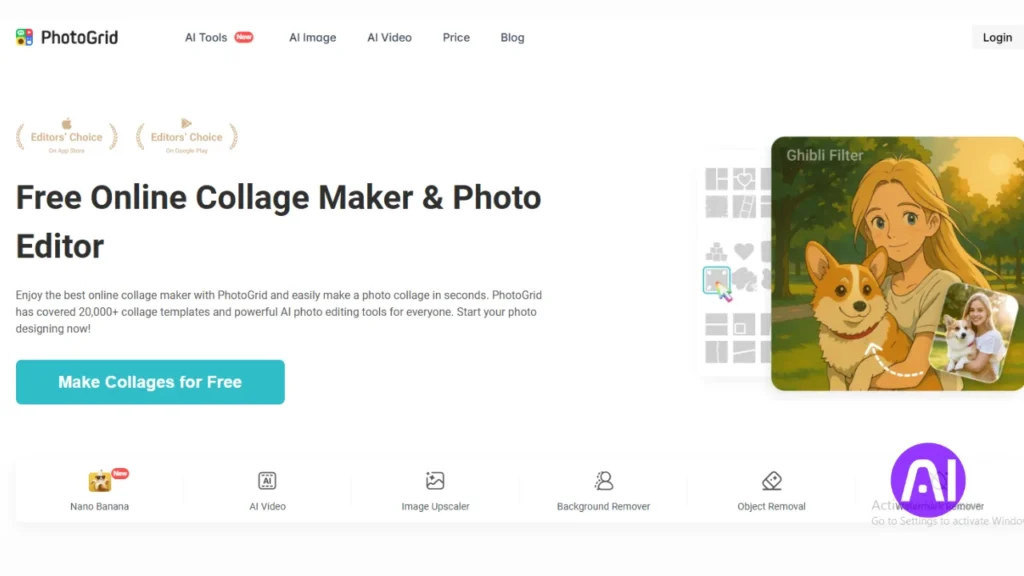
When I need a fast 4x enlargement that looks natural, I reach for PhotoGrid on desktop or phone. The upscaler focuses on a single, reliable scale so output is predictable. It saved time when I prepped visuals for social posts and quick web layouts.
Overview
PhotoGrid centers on 4x enlargement and supports JPEG and PNG. No sign up is required for basic use, which makes quick edits painless. In my tests it produced sharper details and smooth gradients without obvious artifacts.
Core features
- 4x scaling tuned for web, social, and light print.
- Automatic enhancement flow that keeps colors natural.
- Mobile-friendly interface and a simple desktop workflow.
- Supports common formats: jpeg and png for easy handoff.
Pros and cons
I like how PhotoGrid ups the perceived sharpness while preserving smooth tones. The interface is clean and the no-signup path speeds simple jobs.
Limits include no 8x option and minimal fine tuning compared with studio-grade editors. That makes it less suitable for heavy print or technical retouching.
Best for
I recommend PhotoGrid to casual creators and pros who need quick clarity at 4x before moving files into editing tools. It fits in a toolkit alongside heavier software when speed and simplicity matter most.
| Spec | Details | Why it matters |
|---|---|---|
| Scaling | 4x | Predictable resolution for web and social |
| Formats | JPEG, PNG | Easy transfer to editors and publishing platforms |
| Workflow | Mobile + Desktop, No signup | Fast enhancements on the go |
| Adjustment | Automatic only | Simplicity over granular control |
5. Pixelcut
I used Pixelcut on my phone and desktop to speed up photo prep and keep visual quality consistent across listings.
Overview
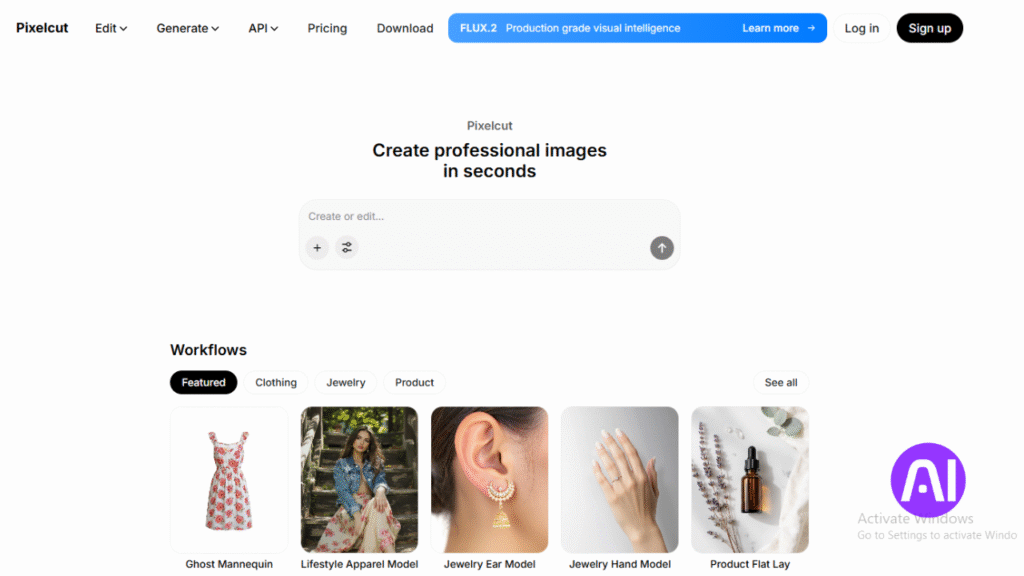
Pixelcut is a mobile-first image upscaler that focuses on clean product and portrait enlargements up to 4x. It supports JPEG and PNG and lets me work without signing up for quick jobs.
Core features
- 4x enlargement tuned for marketplaces and social storefronts.
- Quick uploads and automatic enhancement that lowers background noise.
- Sleek cross-device interface so I can switch between phone and desktop.
- Preserves textures on fabrics and packaging while keeping edges clear.
Pros and cons
- Pros: fast, consistent results that keep fine details and clarity.
- Cons: fewer advanced controls than studio-grade upscalers; capped at 4x.
Best for
I recommend Pixelcut to sellers, creators, and small teams who need to upscale images for listings and ads with minimal friction. I often use it alongside heavier enhancers when I need more than 4x or deep customization.
| Spec | Details | Why it matters |
|---|---|---|
| Scaling | Up to 4x | Predictable resolution for product shots |
| Formats | JPEG, PNG | Easy handoff to stores and editors |
| Workflow | Mobile-first, no signup | Fast turnaround on multiple photos |
6. Upscale Pics
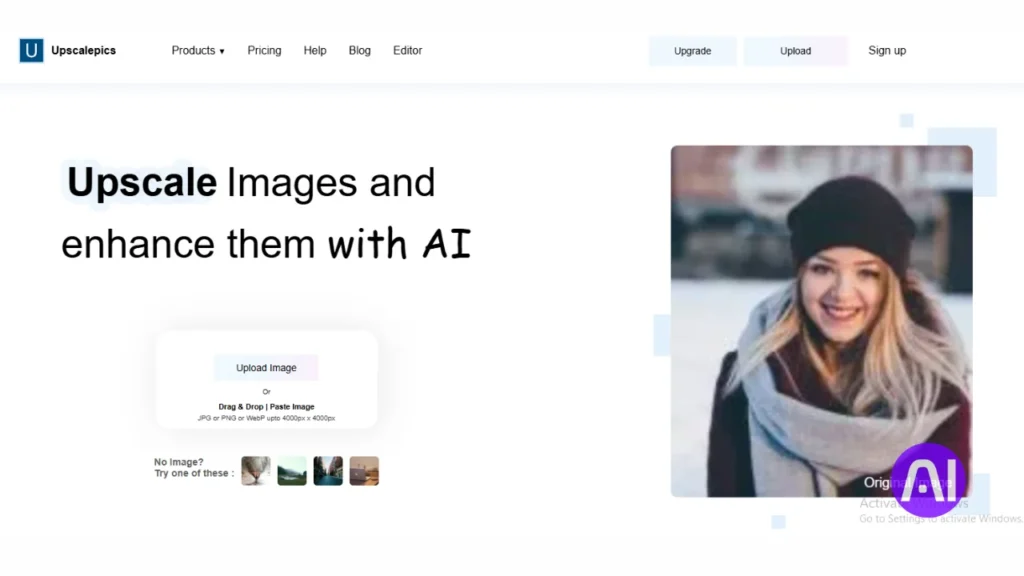
I put Upscale Pics through a quick workflow to test its noise reduction and scaling up to 8x. The site is straightforward and kept my process fast when I needed higher resolution output for large screens.
Overview
Upscale Pics is a browser-based upscaler that accepts JPG, PNG, and WebP. It supports 1x to 8x enlargement and caps uploads near 10 MB. I found it focused on clarity while keeping the interface simple.
Core features
- Scaling options from 1x to 8x with consistent output.
- Noise reduction that preserves edges and fine details.
- Supports common formats (jpeg, png, webp) and handles large files up to 10 MB.
- Minimal controls so I could test several enlargement factors quickly.
Pros and cons
Pros: strong scaling, clean noise handling, and clear results on product and lifestyle images.
Cons: fewer advanced adjustments and limited workflow integrations for heavy automation.
Best for
I recommend this tool to creators who want a capable browser-based enhancer to upscale images without extra setup. It pairs well with other dedicated software when you need automation or deeper tuning.
| Spec | Details | Why it matters |
|---|---|---|
| Scaling | 1x–8x | Room for large display and print targets |
| Formats | JPG, PNG, WebP | Easy handoff across editing and publishing |
| Max file size | Up to 10 MB | Plan export settings upstream |
| Processing | Noise reduction + enhancement | Keeps edges readable at higher resolution |
7. Picsart
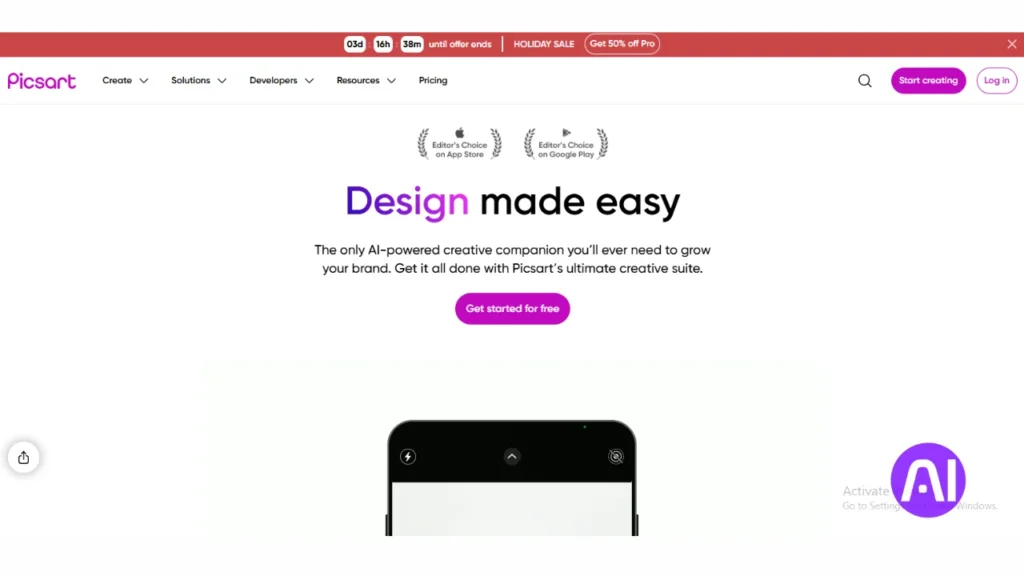
Picsart’s upscaler stood out in my workflow when I needed fast, natural-looking enlargements without extra setup. I ran both portrait close-ups and product photos through the tool and got clean 4x improvements that kept a natural look.
Overview
Picsart is a familiar creative platform whose upscaler gave me reliable 4x enlargements with automatic enhancement. It sharpened soft edges and reduced compression artifacts on older exports while keeping color and contrast balanced.
Core features
- Automatic enhancement that sharpens edges and removes blur quickly.
- Simple controls and fast processing so I can test results without logging in.
- Good performance on portraits and product shots, retaining texture and details.
- Modern interface that fits into common editing tools and social workflows.
Pros and cons
Pros: easy to use, quick output, and consistent results across many images. I could try basic features without creating an account, which sped up my evaluation.
Cons: limited fine-grained controls and no native 8x option. For high-volume automation or extreme enlargement, I pair Picsart with other software.
Best for
I recommend Picsart to creators who want a practical enhancer for social and light commercial needs. Use it when you need a fast way to upscale image resolution and improve clarity before final editing. For larger print jobs or batch automation, add a dedicated upscaler or API-driven workflow alongside Picsart.
| Spec | Details | Why it matters |
|---|---|---|
| Scaling | Up to 4x | Predictable quality for web and social |
| Access | Quick use without login | Fast testing and proofs |
| Strengths | Edge sharpening & artifact reduction | Keeps details and natural tones |
Read more about Picsart’s upscaler and practical tests in this short guide: Picsart upscaler review.
8. ON1 Resize AI
When I need enlargements that hold up in print, I reach for a professional-grade resizer that keeps texture and color intact.
Overview
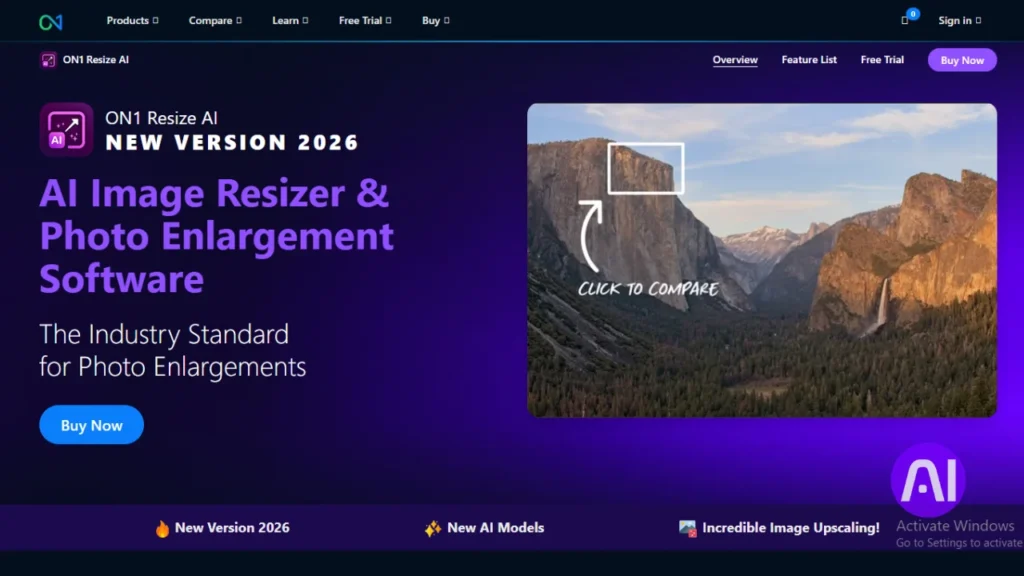
ON1 Resize AI is a desktop-focused image upscaler I used for large-format prints and high-res displays. It runs standalone or inside ON1 Photo RAW, Lightroom, and Photoshop. That flexibility lets me upscale images without breaking my editing flow.
Core features
- 4x to 8x enlargement power with Genuine Fractals detail reconstruction.
- Batch processing to prepare collections quickly for client delivery.
- Plugins for Lightroom and Photoshop plus standalone processing.
- Preserves textures and edges while keeping color and contrast even across output.
Pros and cons
Pros: professional quality output, strong integrations, and steady processing across sets. I saw preserved details and predictable results on prints.
Cons: there is a learning curve compared with browser upscalers, and the interface needs time to master for complex workflows.
Best for
I recommend this tool to photographers and designers who must meet strict print and resolution requirements. Use ON1 Resize AI when you need dependable, high-fidelity results that complement quicker upscalers like Pixelbin or Upscale.media.
| Spec | Details | Why it matters |
|---|---|---|
| Scaling | 4x–8x | Large prints and displays |
| Integration | Standalone, Lightroom, Photoshop, Photo RAW | Smooth editing workflow |
| Processing | Batch processing + Genuine Fractals | Consistent texture and edge preservation |
9. Topaz Gigapixel AI
On demanding restorations I reach for Gigapixel to pull back lost texture and clarity.
Overview
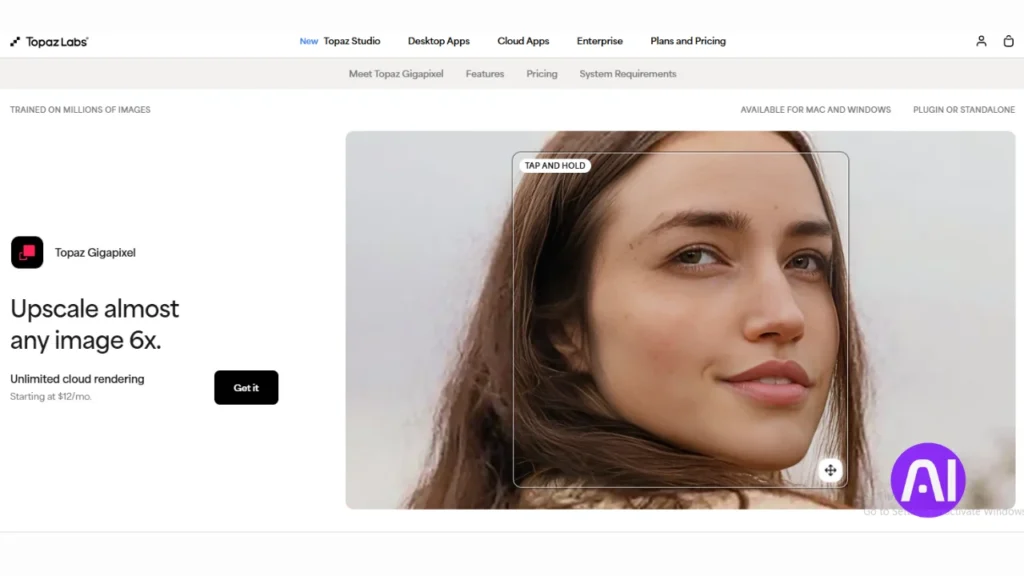
Gigapixel is a high-fidelity image upscaler I use to recover fine details on challenging source photos. It offers reliable 5x enlargement and strong sharpening that keeps results believable under close inspection.
The software runs standalone, which fits focused processing sessions. I often pair it with batch tools when I need automation alongside its detail recovery.
Core features
- Up to 5x enlargement with deep learning models that reconstruct missing details and textures.
- Advanced noise reduction and separate sharpening controls to balance texture and clarity.
- Standalone desktop app that produces clean output ideal for art prints and restored photos.
Pros and cons
- Pros: excellent at pulling back fine hair, fabric, and subtle textures while controlling noise.
- Cons: resource intensive during processing and slower on large batches compared with cloud options.
- Workflow note: I combine Gigapixel with catalog software when file size and throughput matter.
Best for
I recommend this tool when missing details must be reconstructed convincingly. Use it to restore older images, prepare prints, or any job that needs top-level sharpness and realistic texture.
| Spec | Details | Strength | Notes |
|---|---|---|---|
| Scaling | Up to 5x | High-resolution output | Good for print and close inspection |
| Noise handling | Advanced reduction | Preserves fine textures | Adjustable per image |
| Workflow | Standalone software | Focused upscaling sessions | Pair with batch tools for volume |
| Performance | Resource intensive | Best on powerful machines | Expect longer processing times |
Conclusion
I close this roundup by matching each tested upscaler to common professional workflows.
Pixelbin wins when teams need 8K-capable output, cloud integration, batch processing, and API access. Upscale.media is my go-to for fast, free online enhancement when I must process images quickly without new software.
DeepImage offers controlled portrait work and face enhancement with API options on premium plans. PhotoGrid and Pixelcut suit mobile-first creators who want simple 4x upgrades for social and light commerce.
Upscale Pics gives straightforward 8x scaling with solid noise handling in a browser. Picsart works well as a quick photo enhancer before final edits.
ON1 Resize fits studio workflows that need Lightroom and Photoshop integration and dependable large-format resolution. Topaz Gigapixel excels at recovering fine details and realistic texture when clarity matters most.
Choose the tool that matches your output targets, integration needs, and level of control so your images ship on time with strong quality and consistent results.
FAQ
What is the difference between Pixelbin, Upscale.media, and Topaz Gigapixel AI?
I use Pixelbin for integrations and web pipelines because it handles batch processing and CDN-ready outputs. Upscale.media is great for quick browser-based enhancement with a simple interface. Topaz Gigapixel AI runs locally, giving me the most control over large photo files and advanced texture reconstruction.
Can these services handle multiple images at once?
Yes. Pixelbin, Upscale.media, DeepImage, and many others support batch processing. If I need to upscale dozens of photos, I choose a tool that explicitly lists batch processing and offers file-format support like JPEG and PNG to save time.
Which options work offline on my computer?
Topaz Gigapixel AI and ON1 Resize AI run locally on Windows and macOS. I prefer them when I need privacy and full control over processing time and output resolution without uploading files to the cloud.
How do these upscalers handle noise and missing details?
Most modern upscalers use deep learning to reconstruct details and reduce noise. Tools like Topaz Gigapixel AI and DeepImage include noise reduction and sharpening settings so I can balance clarity and natural textures without creating artifacts.
Which upscaler is best for restoring old or low-resolution photos?
I lean toward Topaz Gigapixel AI and DeepImage for restoration work. They excel at reconstructing faces and fine details while maintaining realistic textures. For quick fixes, Upscale Pics or Upscale.media can be useful.
Are there free or low-cost options that still deliver good results?
Yes. Upscale.media, Upscale Pics, and some features in Picsart offer free tiers or affordable plans. I test a few sample images to judge output quality before committing to a paid plan.
How important is file format when upscaling photos?
File format matters. I upload the highest-quality original I have; preferably PNG, TIFF, or the least-compressed JPEG. Some tools preserve metadata and color profiles better than others, so I check their supported formats and export options.
Will upscaling make my photos look unnatural?
It can, if settings are too aggressive. I adjust sharpness, noise reduction, and detail recovery to avoid oversharpening. Tools with preview and zoom let me fine-tune results until the photo looks natural.
How long does the upscaling process usually take?
Time varies by file size, chosen scale, and whether processing is local or cloud-based. Local apps like ON1 Resize AI or Topaz Gigapixel AI may take longer per image but avoid upload time. Cloud services often process faster for small batches.
Can I automate upscaling in a workflow or website?
Yes. I integrate services like Pixelbin via API to automate upscaling, format conversion, and CDN delivery. That saves manual work when handling large image libraries or user uploads.
Do these tools preserve color accuracy and dynamic range?
Most reputable upscalers preserve color, but results depend on the algorithm and export settings. I compare originals and outputs, checking highlights and shadows. Tools that keep ICC profiles and allow TIFF or PNG exports help maintain dynamic range.
Which tools offer mobile or web editing alongside upscaling?
Picsart and Pixelcut provide mobile apps and web editors with additional retouching and layout features. I use them when I need quick composition changes or simple edits before upscaling.
Are there limits on output resolution or file size?
Yes. Cloud services may restrict maximum upscale factor or output megabytes on lower plans. Desktop apps often allow higher final resolutions but require more disk space and processing power. I check each provider’s limits before large projects.
How do I evaluate quality between different upscalers?
I compare results on the same sample images at the same scale. I look for preserved texture, natural edges, low artifacts, and accurate skin tones. Running A/B tests and checking formats and file sizes helps me choose the right option.
Can upscalers improve compressed JPEGs with heavy artifacts?
Many modern upscalers reduce JPEG artifacts while restoring detail. Deep learning models like those in Topaz Gigapixel AI and DeepImage do this better than older algorithms. I still try to find the least-compressed source available for best results.
What should I consider when choosing an upscaler for e-commerce photos?
I prioritize batch processing, consistent results, and fast output for product images. Pixelbin and Upscale.media work well with e-commerce pipelines, and tools that offer CDN delivery or API access streamline publishing and improve load times.
Do these services support RAW files from cameras?
Some desktop applications and a few cloud services accept RAW files. I prefer processing RAW in Lightroom or Capture One first, then use a dedicated upscaler for enlargement to keep color and noise control optimal.
Is customer support and documentation important?
Absolutely. I rely on clear documentation and responsive support when integration or advanced settings are involved. Companies like Topaz Labs and ON1 provide thorough guides and active user communities that help me troubleshoot faster.
Can I try these tools before buying?
Most providers offer trials, free tiers, or sample credits. I test multiple images during a trial to ensure the tool meets my needs for quality, speed, and workflow compatibility before subscribing or buying a license.
What hardware should I use for local upscaling to speed things up?
A modern multi-core CPU and a dedicated GPU with ample VRAM help a lot. I recommend at least 16GB of RAM and an NVIDIA or AMD GPU supported by the software to cut processing times on large files.
Which upscalers are best for creative edits and social content?
For social content, Picsart and Pixelcut work well because they combine enhancement with templates, background removal, and quick export formats. I use them when I need fast, polished visuals for posts and ads.