The Best AI Tools for 3D Generation are transforming how creators bring ideas to life. I’ve rounded up dedicated platforms that speed up the move from text prompts to ready models, helping me cut early-stage work and focus on polish. I tested each service for model quality, topology, export formats, speed, and how well it fits a real production workflow.
My roundup covers rapid generators like Meshy and Luma Labs Genie, full-featured suites such as Adobe Substance 3D and NVIDIA Omniverse, plus collaborative web editors like Spline and Virtuall. I note pricing ranges and who each option fits, from solo artists to studios with enterprise needs.
Each tool entry follows the same structure so I can compare Overview, Core features, Pros, Cons, and Best for. That makes it quick to scan and pick software that balances innovation, reliability, and budget.
I verify models hands-on, checking texture fidelity, clean topology, and export stability so these picks hold up in design, web, and game projects.
For deeper pricing notes and platform details, see my expanded guide at this overview of AI 3D modeling.
Key Takeaways
- I focus on dedicated platforms that convert text and images into production-ready assets.
- Evaluation rests on model quality, topology, export options, and workflow fit.
- This guide helps creators, game teams, and studios pick options that save time without losing quality.
- Tools range from rapid generators to enterprise ecosystems that support complex pipelines.
- Pricing varies widely, so match a platform to your team size and project needs.
My approach to the Best AI Tools for 3D Generation right now
My evaluation tracks the full path from prompt to export so I can compare speed, fidelity, and workflow fit.
I keep the test consistent across platforms. I use the same prompts, images, and export targets to judge how each system handles modeling, texturing, and topology. That helps me see where a platform speeds concept work and where it needs manual cleanup.
I weigh features that cut repetitive work: auto texturing, collaboration, and direct export to common web and DCC pipelines. I also map costs, credits, subscriptions, and enterprise licensing to estimate true cost per model and per project.
Below is a quick comparison of the metrics I track during hands-on tests with Meshy, Luma Labs Genie, 3D AI Studio, Tripo AI, Spline AI, Adobe Substance 3D, NVIDIA Omniverse, and Virtuall.
| Metric | What I measure | Why it matters | Typical outcome |
|---|---|---|---|
| Speed | Prompt → export time | Impacts iteration and deadlines | Fast generators: minutes; full suites: longer but more control |
| Quality | Topology, UVs, texture fidelity | Determines editability and render readiness | Quad-based outputs often need less cleanup |
| Exports & integration | Formats, OpenUSD, DCC plugins | Fits into pipelines and web projects | Better platforms offer multi-format exports |
| Pricing | Credits, subs, enterprise cost | Real cost per model and per project | High-res outputs raise per-export cost |
1. Meshy for rapid text and image to 3D assets
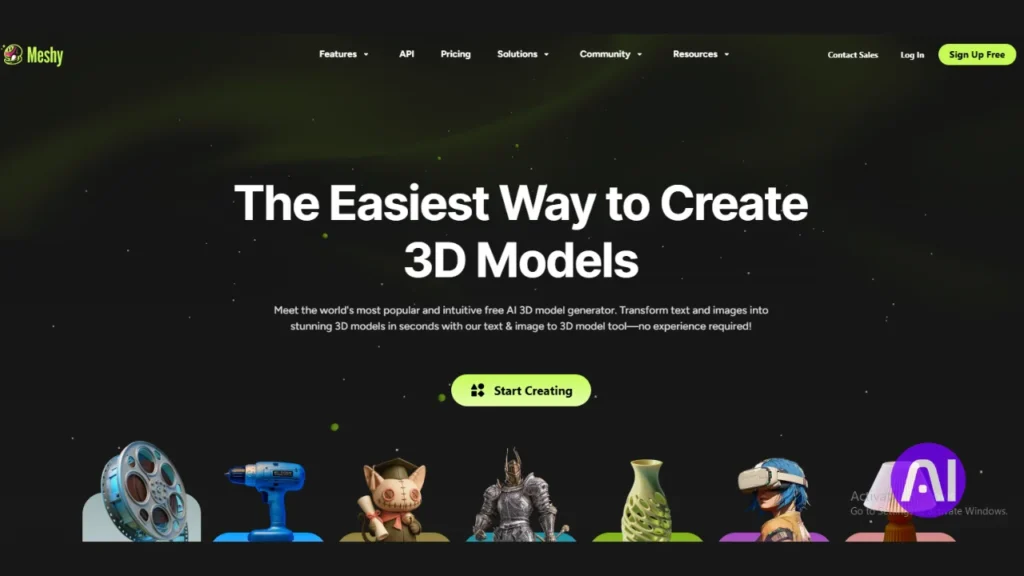
When I need concept assets fast, Meshy often gets me a usable model from a text prompt or single image in moments. The interface shows a preview in seconds and lets me refine to higher-quality outputs in minutes.
Overview
I use Meshy when I want quick iterations and solid textured assets for look development. It converts text and image inputs into models that are ready to export or tweak in other software.
Core features
- Text prompts and single image inputs create textured models with fast preview generations.
- AI retexturing updates materials and offers credit-based refinements.
- Auto animation options, export to common formats, and a free 200-credit monthly tier.
Pros
- Very fast turnaround, preview results in seconds and refined models in minutes.
- Realistic object outputs that often serve as a strong starting point for artists.
- Simple interface that helps creators manage credits and refine selectively.
Cons
- Credits add up on larger runs and peak times can slow best refinements.
- Some outputs need topology or UV cleanup before animation or final renders.
Best for
I reach for Meshy to jump-start ideas from text prompts or an image. It fits artists and creators who need speed and usable assets that move into downstream editing and animation workflows.
2. Luma Labs Genie for creative text prompts and quad-based model generation
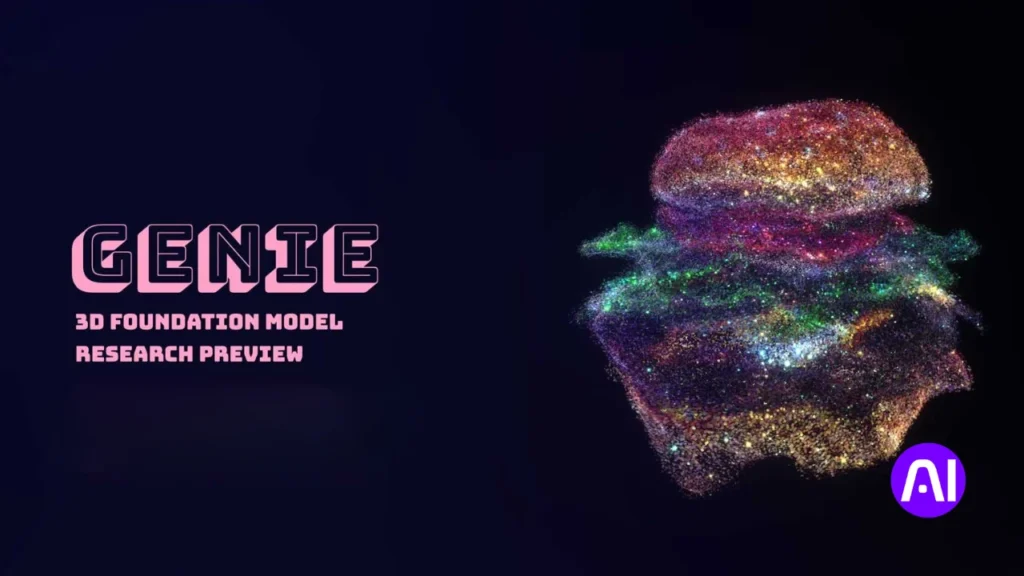
When I want a wide range of creative directions fast, I turn to Luma Labs Genie to sketch ideas as clean quad meshes. It gives rapid first drafts from short prompts, then scales up to higher-resolution outputs when I need more detail.
Overview
I use Genie when I want creative variety and topology that needs less cleanup. The quad-based outputs make it simpler to move into sculpting, UV work, or rigging without losing time fixing faces.
Core features
- Fast text-to-model drafts that often appear in seconds, with refinement options that take minutes.
- Quad-based meshes export to GLB, FBX, and OBJ so assets slot into common web and game pipelines.
- Access from web, iOS, or Discord eases collaboration and feedback among users and teammates.
- Free tier available to test generation and export flow before committing to larger runs.
Pros
- Strong topology makes subdivision, UVs, and texture work easier for artists.
- Cross-platform access helps review and iterate from different devices.
- Quality holds up when I need models that will see heavy edits or deformation.
Cons
- High-resolution refinements take more time, so I budget extra minutes for final outputs.
- Some results skew stylized rather than strictly realistic, which can require tweaks for photoreal work.
Best for
I pick Genie for fast ideation when I need clean meshes that move quickly into rigging or design work. It suits artists and teams building assets for web, game, or visual design pipelines who value topology and quick iteration.
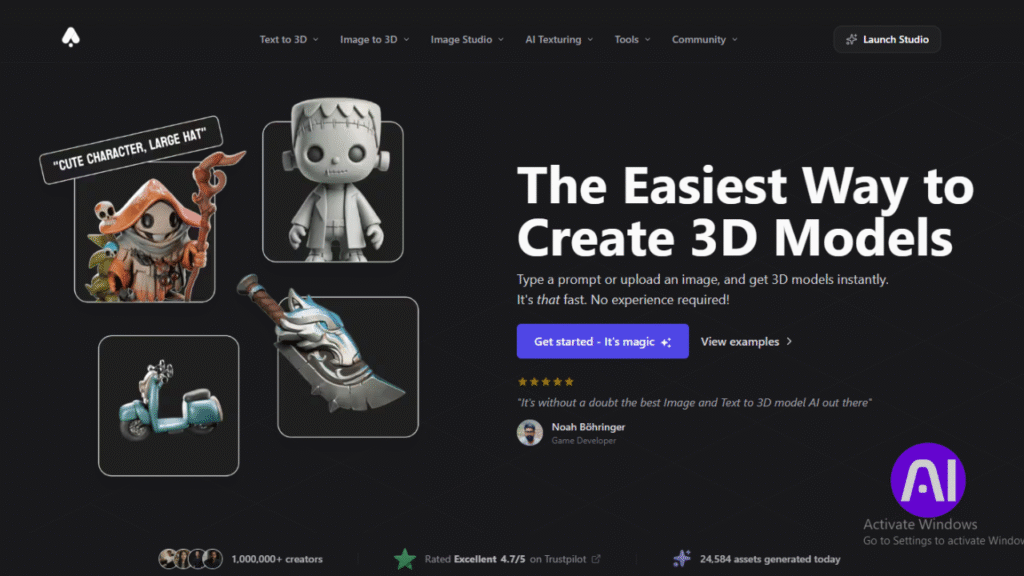
3. 3D AI Studio for balanced model generation, texturing, and animation workflows
I turn to 3D AI Studio when I want an all-in-one space that handles model creation, texturing, and quick animation tests without hopping between apps. It keeps iterations moving and helps me check deformations early in the process.
Overview
I use this tool to convert short text prompts or a single image into usable models and textured previews. The platform aims to speed concept work while giving me a coherent set of assets to export or refine.
Core features
- Text-to-3D and image-to-3D generation with quick previews under a minute.
- Integrated texturing tools and editable materials to tune surface detail.
- Credit-based tiers (Starter, Basic, Studio) that let users plan runs and scale when projects grow.
- Simple animation tests to validate deformation, timing, and camera moves before full production.
Pros
- Competitive speed and an end-to-end workflow that keeps modeling and texturing together.
- Flexible pricing tiers that work for solo creators up to small studios.
Cons
- Server load can slow high-detail refinements during peak times.
- Some outputs need UV and material tweaks; previews bake lighting that can mask real-world quality.
Best for
I recommend 3D AI Studio during early project phases when I need steady iterations of models and textures and a quick way to test simple animation. It suits creators who want an integrated path from prompt to preview without switching software.
| Tier | Typical credits | Best use |
|---|---|---|
| Starter | Low | Fast previews and concept tests |
| Basic | Medium | Balanced runs with refinements |
| Studio | High | Production-level generation and more exports |
4. Tripo AI as a fast model generator with production-ready exports
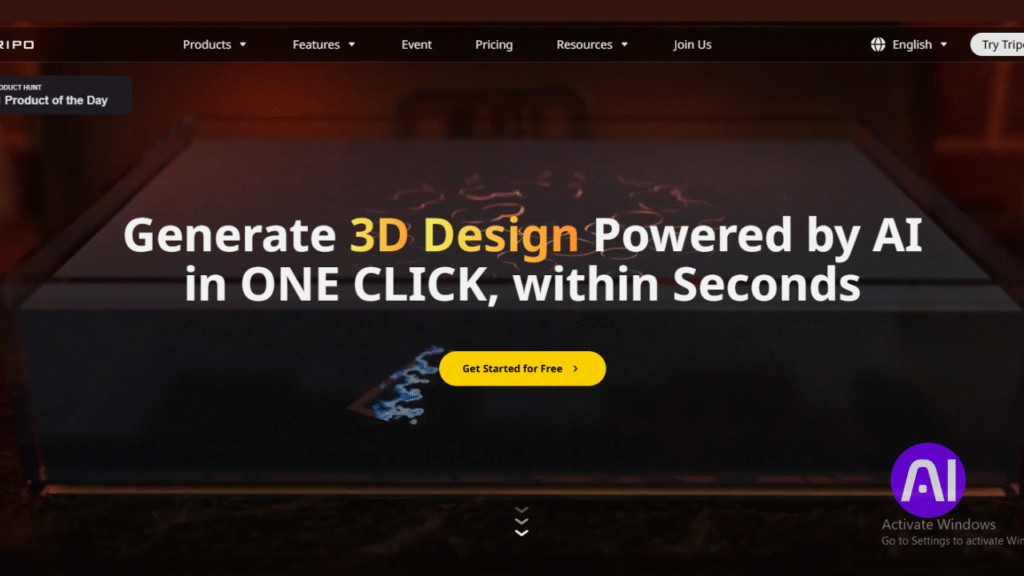
I reach for Tripo AI when rapid iterations must slot straight into a game or real-time pipeline. The platform turns short prompts or images into usable models that include exports tailored for rigging and optimization.
Overview
I use Tripo when I need fast models with exports that are ready for rigging or optimization right away. Batch and multi-view inputs speed concepting and improve mesh accuracy across complex shapes.
Core features
- Production-oriented exports with skeletons and smart low-poly options for real-time workflows.
- HD textures and materials that cut down hand texturing time.
- Batch and multi-view generation to cover variations quickly in seconds.
- API access so teams can automate runs and route outputs into versioned storage.
Pros
- Speed plus export quality works well for game development and in-engine testing.
- Smart low-poly and materials management shrink iteration loops between generator output and engine import.
Cons
- Credits can burn fast on large batches; private models require higher tiers.
- Some assets still need manual cleanup or retopology for complex animation rigs.
Best for
It fits game development and teams that need quick prop or character iterations. I also use it when I must test many variations in seconds, lock a model, then move the asset into production workflows.
| Plan | Typical credits | Exports | Ideal use |
|---|---|---|---|
| Free | Low | GLB, OBJ, basic textures | Concept tests, quick previews |
| Pro (~$30/mo) | 1,000 | Skeletons, low-poly, HD textures | Small projects, frequent iterations |
| Premium | High | Private models, batch exports, API | Studio pipelines, production runs |
5. Spline AI to generate models and textures inside a collaborative web editor
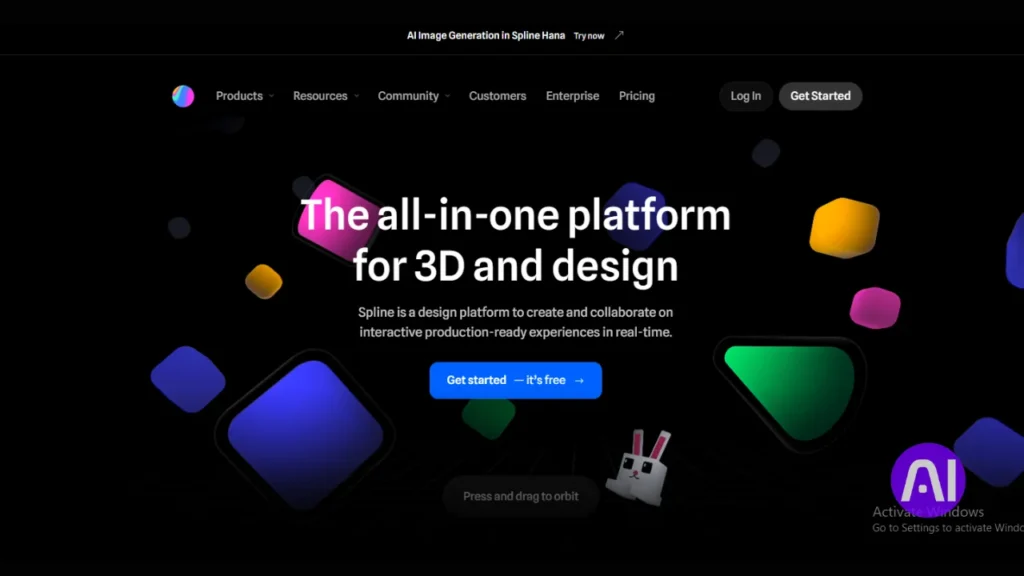
For quick, shared design sessions I lean on Spline’s browser editor and its built-in generation features. It keeps my team and me in one place so review cycles stay fast and focused.
Overview
I rely on Spline when I want generation inside a collaborative web editor so my team can iterate live. The platform lets me create models and textures, place them in a scene, and invite others to edit or comment in real time.
Core features
- Text or image prompts create models and materials that drop directly into a shared scene.
- Spell uses Gaussian Splatting to turn a single image into an explorable environment.
- Real-time collaboration with comments and simultaneous edits in the browser.
- Free plan and a Super plan near $12/month; AI credits sell separately (around $10 for 1,000 credits).
Pros
- Zero install and easy sharing make quick reviews simple for design teams.
- In-editor generation keeps my workflow fluid without bouncing between apps.
Cons
- Heavy generation depends on separate credits, which can raise costs for bigger projects.
- For film-grade fidelity I still export models to a DCC and refine materials there.
Best for
I use Spline for web design projects, interactive previews, and lightweight assets where collaboration and speed matter most. Creators who want a browser-first workflow and shared scenes will get the most from this generator and editor pairing.
6. Adobe Substance 3D for AI texturing, materials, and scene creation
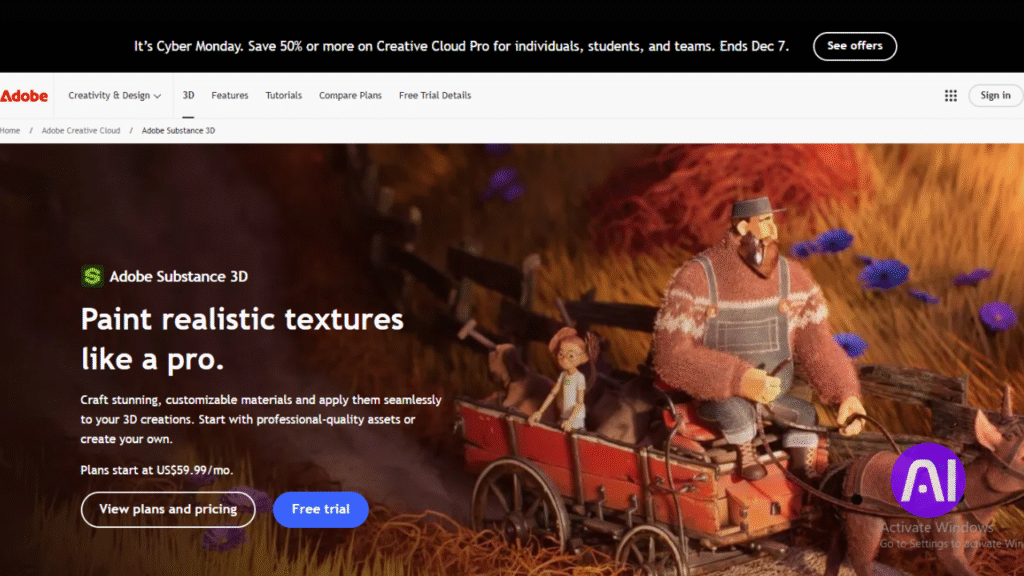
When I need polished surfaces and lifelike materials, I turn to Adobe Substance 3D to finish assets with industry-grade textures. It is a material-first suite that speeds texturing and scene creation when geometry already exists.
Overview
I use Substance when I already have a model and want top-tier textures and scene staging. The collection focuses on converting photos into PBR maps and on fast ideation with text-to-texture tools.
Core features
- Sampler: image-to-material conversion that generates full PBR maps from a single photo.
- Text-to-texture: rapid concepting for unique surface looks.
- Stager: generative backgrounds that match perspective and lighting for realistic scenes.
- Deep Adobe integration and a large asset library available via a subscription.
Pros
- Professional material quality that reduces manual map work and speeds storytelling.
- Ecosystem support and an extensive library that help artists accelerate production on projects.
Cons
- It is not a model generator, so I pair it with other tools to create geometry.
- Subscription costs add up for teams, though the software often earns its place in pro workflows.
Best for
I recommend Substance to artists focused on product renders, film and game texturing, and any design work where finish and quality matter. It shines when the goal is polished materials and coherent scene creation.
| Feature | What it does | Why it matters |
|---|---|---|
| Image-to-material (Sampler) | Creates PBR maps from a photo | Saves time on UV baking and hand-painting textures |
| Text-to-texture | Generates concept surface variations | Speeds ideation and visual exploration |
| Stager | Auto-generates backgrounds with matched lighting | Helps validate assets in realistic scenes quickly |
| Integration & Library | Round-trip with Adobe apps; large asset store | Maintains branding and accelerates production |
7. NVIDIA Omniverse for enterprise pipelines, OpenUSD, and AI-assisted creation
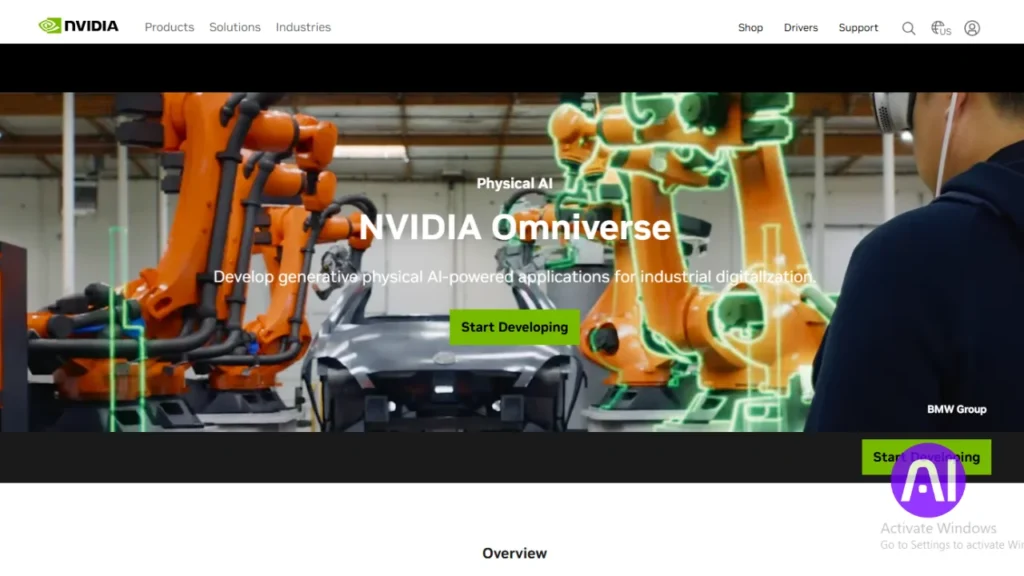
For projects that span many departments and apps, Omniverse becomes my central collaboration layer. I use it as the backbone when I need interoperability and scalable creation across a large project.
Overview
Omniverse is OpenUSD-native and built to connect Blender, 3ds Max, Unreal Engine, and other software. It keeps a single scene description so teams do not lose data when they move assets between apps.
Core features
- OpenUSD-based scenes that enable multi-app collaboration and reliable asset exchange across a complex workflow.
- RTX-powered real-time path tracing for high-quality previews to validate lighting and materials early.
- Generative blueprints like Replicator for synthetic data and procedural content to speed training and testing.
- Access tiers: free for individuals, and Omniverse Enterprise licensed per deployment with trial options.
Pros
- Designed for creators who need robust workflows and tight app integration.
- World-scale performance that suits digital twins, simulation, and large collaborative projects.
Cons
- It is not a plug-and-play model generator; setup and pipeline planning are required.
- Enterprise licensing and hardware (RTX-class GPUs) can raise project cost and support needs.
Best for
I recommend Omniverse to studios and enterprises that need cross-application workflows and a shared scene standard. Teams that want to embed generative components into a controlled environment will find it scalable and production-ready.
| Access | Primary use | Strength | Typical users |
|---|---|---|---|
| Individual (free) | Testing, small projects | OpenUSD compatibility, RTX previews | Solo creators, R&D |
| Enterprise (licensed) | Production pipelines, digital twins | Scalable collaboration, simulation tools | Studios, engineering teams |
| Generative modules | Synthetic data & procedural content | Replicator and blueprints for automation | Data teams, ML engineers |
8. Virtuall for multi-engine 3D model generation and team workflows
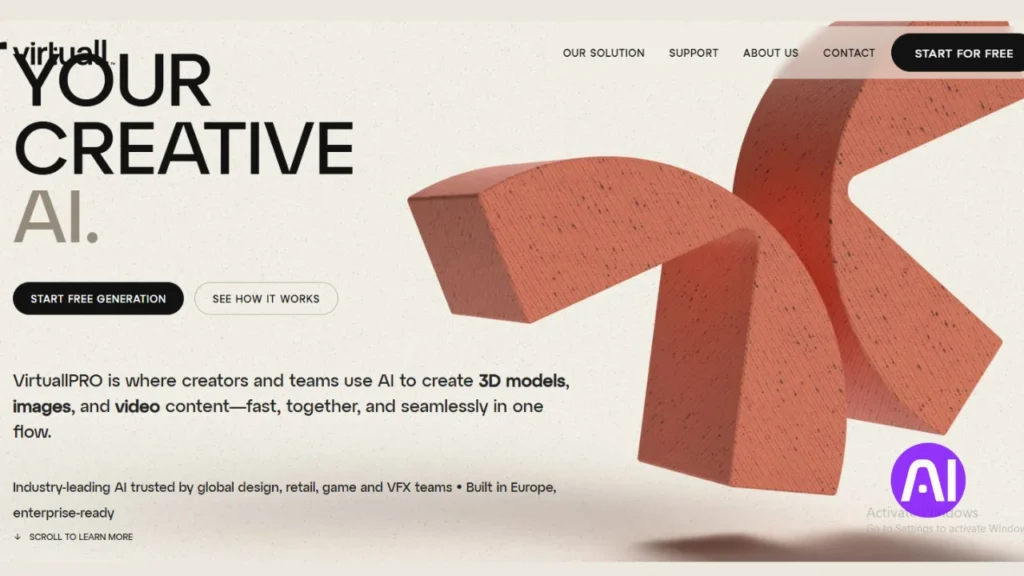
When teams need to test multiple model engines side-by-side, I turn to a unified platform that keeps generation and review in one place.
Overview
I choose Virtuall when I need a single space to run multi-engine generations and manage projects with my team. It blends generation, review, and project tracking so we avoid file chaos.
Core features
- I can compare models from several engines and pick the best result while keeping assets organized with built-in versioning.
- Project boards, Kanban-style tracking, and in-context comments speed reviews and cut edit rounds.
- Real-time annotations on 3D assets and file versioning make stakeholder feedback clear and actionable.
- Enterprise-grade security, governance, and admin controls help protect work and meet compliance needs.
Pros
- Multi-engine flexibility improves creative control and helps match materials and style to a brief.
- Integrated workflow features reduce software hopping and keep projects on track from generation to delivery.
Cons
- The platform can feel heavy if you only need a simple generator.
- Team-wide adoption often needs training so users leverage workflow features well.
Best for
I recommend Virtuall for studios and agencies that run many projects and need structured collaboration. It also suits creators who handle frequent stakeholder feedback and need annotations tied to assets.
| Target users | Key strength | Access |
|---|---|---|
| Studios & agencies | Multi-engine comparison, governance | Free trial, tiered pricing to enterprise |
| Creators & teams | Project boards, annotations, versioning | Seat-based plans, admin controls |
| Game/AR/VR/VFX | Export-ready models and secure workflows | Enterprise security and compliance |
Conclusion
I close by tying each platform to real use cases so you can choose a clear path from prompt to production. I assessed every entry with the same structure and tests so comparisons are fair and actionable.
If you need speed to generate models from text images, Meshy and Tripo save time and put usable objects into a scene quickly. For cleaner topology and realistic models that edit well, Luma Labs Genie is my go-to before extra refinement passes.
When teamwork and shared scenes matter, Virtuall and Spline keep projects organized and let users iterate together. If your priority is materials and scene finish, Adobe Substance 3D elevates textures and lighting during final creation.
For large pipelines and synthetic data at scale, NVIDIA Omniverse anchors a world with OpenUSD and integration. And when I want a single app to move from prompts to quick animation checks, 3D AI Studio maintains flow without extra hops.
Start with one or two platforms that match your game or production needs, plan finishing time, and expand your stack as workflows evolve. That approach helps you generate models and ship work faster with fewer surprises.
FAQ
What types of model generation workflows do I cover in my overview?
I cover text-to-model, image-to-mesh, and hybrid pipelines that combine prompt-driven generation with manual refinement. I explain how each workflow fits into game design, product visualization, and concept art so you can pick the fastest route from idea to asset.
How do I evaluate core features across different platforms?
I compare export formats, polygon control, UV unwrapping, texture baking, material libraries, and animation support. I also look at integration with engines like Unity and Unreal, and file standards such as glTF, FBX, and OpenUSD.
Which tools excel at converting text or images into usable meshes quickly?
I highlight solutions optimized for rapid prototyping with low- to mid-poly exports and reasonable UVs. These tools prioritize speed and clarity of prompts, making them useful when you need models for iteration or playtesting.
Can any of these platforms produce production-ready assets out of the box?
Some can output clean geometry and PBR textures suitable for direct use, but most workflows still require manual cleanup, retopology, or texture adjustments depending on your target platform and performance budget.
How important is texture and material support when choosing a generator?
Very important. Realistic materials and good texture baking reduce downstream work. I point out which solutions include procedural materials, Substance integration, or native PBR export to speed up game and visualization tasks.
Which options work best for collaborative web-based editing?
I recommend platforms with browser editors and team permissions that let multiple artists iterate on models, textures, and scenes. Web collaboration reduces handoffs and accelerates feedback loops.
Do any platforms support enterprise pipelines and OpenUSD?
Yes, some solutions focus on studio-scale workflows and support OpenUSD, real-time scene composition, and integrations with production renderers. These are ideal when you need predictable, versioned assets across teams.
How do I choose a tool if I need animation and rigging support?
Pick platforms that export skinned meshes and offer simple rigging or retargeting. If you rely on complex animation, ensure the tool plays nicely with your DCC apps like Blender, Maya, or MotionBuilder.
What should I expect in terms of file formats and engine compatibility?
Expect glTF, FBX, OBJ, and sometimes USD exports. I detail which tools map materials and animations cleanly to Unity and Unreal and which require additional conversion steps.
How do I write prompts to get the best results from text-driven generators?
I advise starting with clear object descriptions, specifying style, desired polygon density, texture resolution, and target use case. Include reference images when possible and iterate with targeted adjustments rather than long rewrites.
Are there tools better suited for concept exploration versus final asset production?
Yes. Some platforms prioritize speed and variety for concept exploration, while others focus on fidelity and export quality for production. I mark which are stronger in each area so you can match them to your pipeline.
How much manual cleanup should I expect after generation?
It varies. For high-fidelity or optimized game assets, plan on retopology, UV fixes, and texture tweaks. Quick prototypes may need only minor cleanup. I outline typical post-processing steps for each type of output.
Can these generators handle complex scenes and multiple objects?
Some handle multi-object scenes and scene composition; others focus on single models. If you need full scenes, look for tools with scene export, layer management, and asset instancing to keep file sizes and performance manageable.
Do any platforms include procedural materials or texture generators?
Yes, a number include procedural material editors or Substance-compatible pipelines. These features speed up realistic texturing and let you tweak surface parameters without repainting textures.
What is the typical turnaround time from prompt to usable asset?
Turnaround ranges from seconds for low-res prototypes to minutes or longer for high-detail, textured exports. I note which platforms prioritize speed versus quality so you can plan your schedule.
How do I integrate generated models into game engines with minimal friction?
Export in engine-friendly formats, keep texture sizes within budget, bake PBR maps correctly, and ensure normals and UVs are clean. I recommend small test imports early to catch issues before scaling up.
Are there licensing or IP concerns I should watch for?
Yes. Check each provider’s terms for ownership, commercial use, and derivative rights. I flag platforms with clear commercial licensing to protect your projects and studio workflows.
Which platforms offer the best balance of quality, speed, and cost?
I identify solutions that provide solid exports, robust texturing, and reasonable pricing tiers. Balance depends on your needs: solo prototyping, small studio production, or enterprise pipelines each have different sweet spots.
How do updates and community resources affect tool choice?
Strong documentation, active forums, and frequent updates reduce friction and help you solve issues faster. I prioritize platforms with good learning resources and community plugins that extend workflows.
Can generated models be optimized automatically for mobile or VR?
Some tools include optimization profiles that reduce polycount and compress textures for mobile and VR targets. I point out which ones offer presets and which require manual LOD creation and texture atlasing.
What file management practices do you recommend when using multiple generators?
Keep clear naming conventions, version control assets, export consistent formats, and document the generator and prompt used for each file. This makes iteration and team handoffs smoother and prevents asset mismatch.