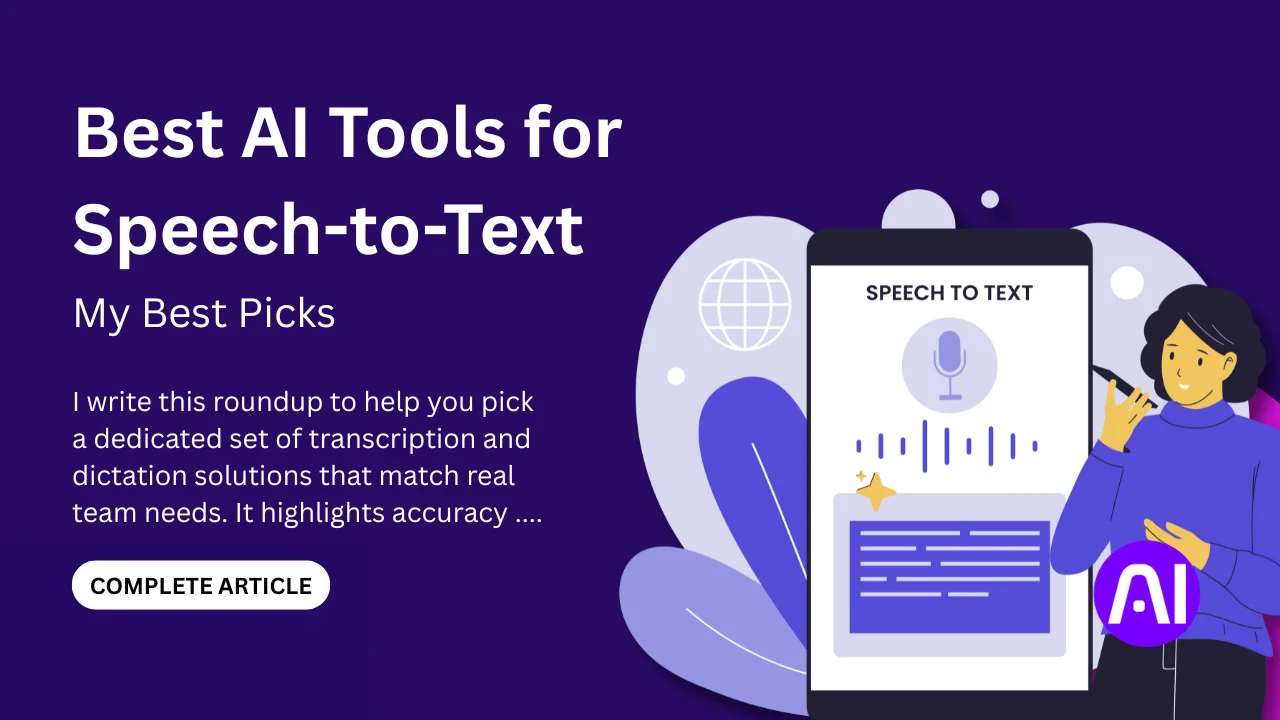
I write this roundup to help you pick a dedicated set of transcription and dictation solutions that match real team needs. It highlights accuracy, privacy, and ease of use so you can compare trade-offs quickly. You will also see picks that rank among the best AI tools for speech-to-text.
I cover seven to ten specialists that span on-device privacy, offline apps, live captions, and enterprise software that integrates with meeting platforms and developer stacks. You will see consistent sections for each entry: an overview, core features, pros and cons, and a clear Best for note.
The market moved quickly. Teams now want speaker identification, custom vocabulary, concise summaries with action items, and strong search. I also flag where on-device processing or data deletion matters for privacy-conscious workflows.
Key Takeaways
- I compare dedicated tools across accuracy, privacy, and usability so you can choose with confidence.
- The list includes on-device, browser-based, live captioning, and enterprise-grade software.
- I highlight privacy options like offline work and data deletion where it matters most.
- Expect consistent feature lists, pros and cons, and a clear Best for note for each tool.
- Pricing snapshots and integration notes help you match tools to your workflow and budget.
Why speech-to-text matters right now for speed, accuracy, and accessibility
By choosing specialist speech solutions, I can transform messy audio into reliable text that fuels my workflow. Modern transcription turns long conversations into searchable, actionable records so I move from idea to output without losing detail.
Speed matters: automated transcription cuts turnaround from hours to minutes and delivers summaries and notes while decisions are still fresh. That immediacy keeps projects moving and reduces follow-up lag.
Accuracy has gotten better. Current models read context, handle accents, and learn domain language so I spend less time fixing mistakes and more time using transcripts to drive outcomes.
- Accessibility improves participation with live captions and clear transcripts for deaf or hard-of-hearing users and for non-native speakers.
- For meetings, recorded content becomes searchable knowledge I can index, share, and review across distributed teams.
- When audio quality varies, systems that manage background noise and multiple speakers prevent lost statements.
Privacy and compliance options like encryption, HIPAA, GDPR, on-premises deployment, and offline modes let me use these solutions in regulated settings. Strong search and topic detection then let me jump to the moments that matter, improving follow-ups and team alignment.
How I tested and shortlisted tools for this Product Roundup
I ran dozens of practical trials to see which transcription solutions work in real workflows. I focused on dedicated apps and software that do one job well: convert speech into clear text fast.
Each candidate faced the same tests. I checked baseline accuracy across accents, pacing, and industry terms. I timed the setup and first successful transcript to measure time to value.
- I verified speaker identification and diarization in group calls so users can trace who said what.
- I evaluated summarization and extraction of action items to judge practical usefulness.
- I measured privacy options: on-device processing, deletion policies, and encryption.
- I confirmed offline capability for field work and tight-network scenarios.
- I tested integrations with meeting platforms, calendar workflows, and searchability across archives.
Finally, I made sure the shortlist covers solo dictation, privacy-first offline apps, live caption systems, and enterprise platforms. That way you can match a tool to your specific needs without guessing.
Key factors I use to evaluate speech recognition software
When I evaluate speech recognition systems, I focus on a few practical areas that show real value. These guide how I score each platform and keep comparisons consistent across entries.

Accuracy, custom vocabulary, and context awareness
I prioritize accuracy that handles accents, domain language, and overlapping speakers so the transcript needs minimal cleanup. Speaker labeling and custom vocabulary are critical when product names or jargon appear often.
Context awareness reduces homophone errors and yields text that reads like the speaker intended.
Summarization, action items, and searchability
Summaries must extract decisions, owners, and deadlines in a human voice. Good summarization saves time and lets me move from notes to execution.
Searchability turns archives into a knowledge base for onboarding and cross-team work.
Security, compliance, and on-device processing
Security must include encryption, retention controls, and options for on-device or on-prem deployment. Compliance like HIPAA and GDPR is non-negotiable for regulated business use.
- I also check machine learning indicators: confidence scores, punctuation, and export options.
- Admin controls and system performance ensure the platform fits into real workflows.
Best AI Tools for Speech-to-Text
Here I map the selection of transcription software into clear use-case buckets to simplify your shortlist.
I group these products by dictation, offline privacy, live captions, and developer APIs. That helps you jump to the right option fast.
- I keep a consistent section layout across entries so you can compare core features, pros and cons, and pricing quickly.
- I call out on-device processing, real-time captioning, speaker ID, summaries, export formats, and usage limits.
- Each app entry lists ideal users; students, journalists, teams, or enterprise so you pick a match without long trials.
| Use case | Representative names | Key strengths |
|---|---|---|
| Dictation | Jamie, Just Press Record | Fast notes, simple exports |
| Offline / privacy | MacWhisper, Letterly | On-device processing, local storage |
| Live captions / accessibility | Live Transcribe, Google Docs Voice Typing | Real-time captions, low latency |
| Enterprise / APIs | IBM Watson, Azure AI Speech | Scaling, integrations, custom models |
This overview prepares you to dive into individual entries. I note where summaries and speaker labeling save the most time, and I flag cloud vs on-device trade-offs so security-conscious teams can choose the right route.
1. Jamie
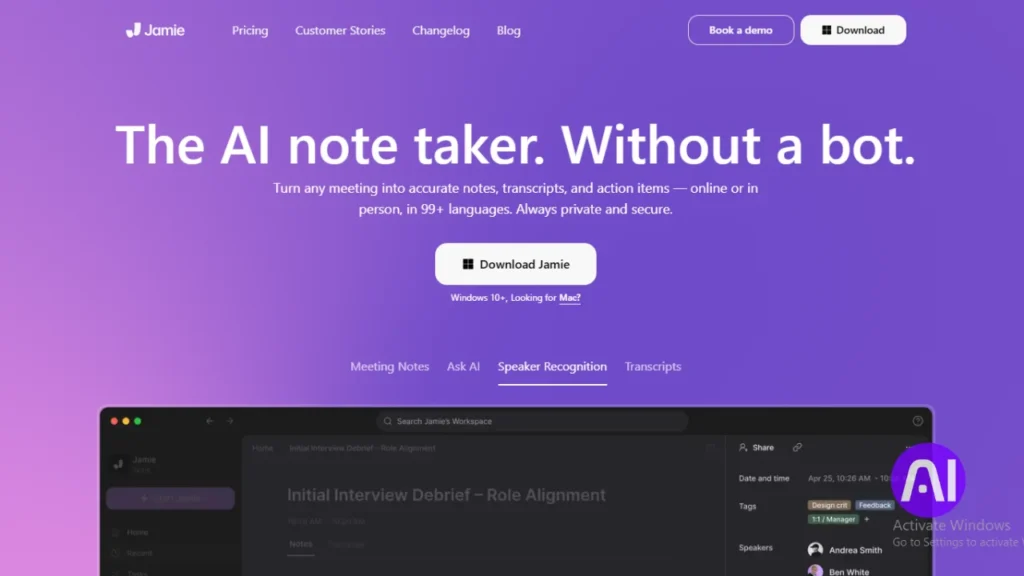
I rely on Jamie when I need a private meeting recorder that doesn’t require inviting a bot. The app captures system and mic audio and turns speech into organized, searchable text I can use right away.
Overview
Jamie runs on-device and records meetings without joining as a participant. It keeps transcripts local, then deletes recordings after processing. That flow reduces retention risk and fits strict privacy needs.
Core features
- On-device transcription that supports 20+ languages and works offline.
- Speaker identification so I can see who said what in multi-person calls.
- AI summaries that extract decisions and action items into quick notes.
- Queryable sidebar and customizable templates for consistent meeting formats.
Pros and cons
- Pros: strong accuracy with jargon and accents, clean interface, broad language support.
- Cons: no live subtitles and no long-term cloud recording storage.
Best for
Teams that want private, on-device meeting capture across Zoom, Google Meet, and Teams. Pricing starts with a free tier (10 meetings/month) up to Executive at 99€/month, plus Team and Enterprise plans.
2. Google Docs Voice Typing

For quick drafting and hands-free editing, I often use the voice typing feature that lives in Google Docs. It gives me fast dictation directly into a document with no extra install or setup. That saves time when ideas flow and I want words on the page fast.
Overview
I use Google Docs Voice Typing when I want simple dictation inside my existing documents. The feature runs in supported browsers and streams my speech into editable text in real time.
Core features
Built-in voice commands let me select paragraphs, apply italics, copy, paste, and add punctuation as I speak. The browser processes audio and inserts the resulting text directly into the document.
Pros and cons
- Pros: zero cost, easy accessibility, and less typing strain when drafting outlines or long notes.
- Cons: voice commands work in English only and there is a short learning curve to phrase commands cleanly.
Best for
This is a handy tool for writers and students who live in Google Docs and need a free dictation option with simple editing commands. I rely on it to get rough drafts and ideas down quickly.
3. Letterly
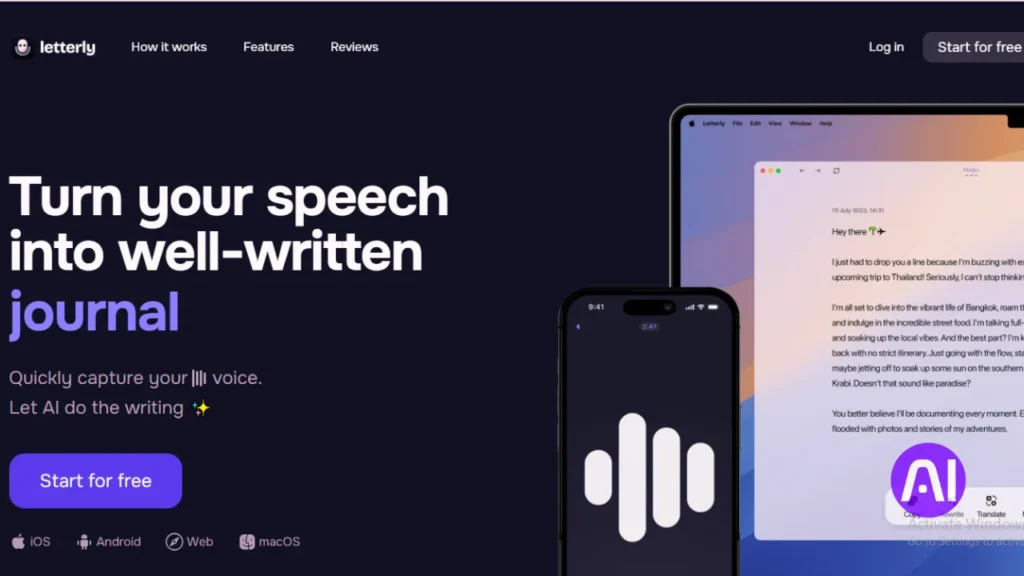
When ideas hit me on the move, I open Letterly and speak until a polished draft appears. The app turns messy voice notes into structured, publishable text so I spend less time editing and more time shipping work.
Overview
I use Letterly to speak rough thoughts and have them returned as clean paragraphs, headings, and bullets. It records with the screen off and keeps drafts synced across iPhone, Android, Mac, and web.
Core features
- 25+ rewriting options to change tone and clarity, so I pick the right style fast.
- Background recording and cross-platform sync that save drafts during commutes.
- Light and dark modes for long sessions and easy export into docs or a CMS.
Pros and cons
- Pros: fast mobile dictation, flexible rewriting options, clean exportable text.
- Cons: the refined text sometimes needs a quick edit to match my exact nuance.
Best for
Creators and marketers who want a dictation workflow that produces ready-to-use text with minimal editing. The flat annual pricing of $70 keeps budgeting simple and predictable.
4. Aiko
Aiko is my go-to when I want high-accuracy transcription that never leaves my device. It runs Whisper locally so I can process sensitive audio offline and avoid sending files to external servers.
Overview
I use Aiko when privacy and reliable results matter. On macOS it runs Whisper large v2 for tougher recordings. On iOS it switches to medium or small models to fit device memory and battery limits.
Core features
- Local Whisper models on device, which keeps audio and transcripts private.
- Support for about 100 languages so I can work across multilingual content.
- Exports to JSON, CSV, and subtitle files for analytics, captions, and archives.
- Simple interface that gets me from audio to usable text quickly.
Pros and cons
- Pros: 14-day free trial, low ongoing pricing ($22 plan), strong accuracy on larger models, and offline reliability when I travel.
- Cons: no batch transcription yet and occasional formatting clean-up is needed for longer files.
Best for
Journalists and researchers who need private, on-device transcription and structured exports will like Aiko. Its pricing model is budget-friendly after the trial, and I often export subtitles directly for quick caption drafts.
Learn more and download the app from this Aiko page: Aiko app overview.
5. MacWhisper
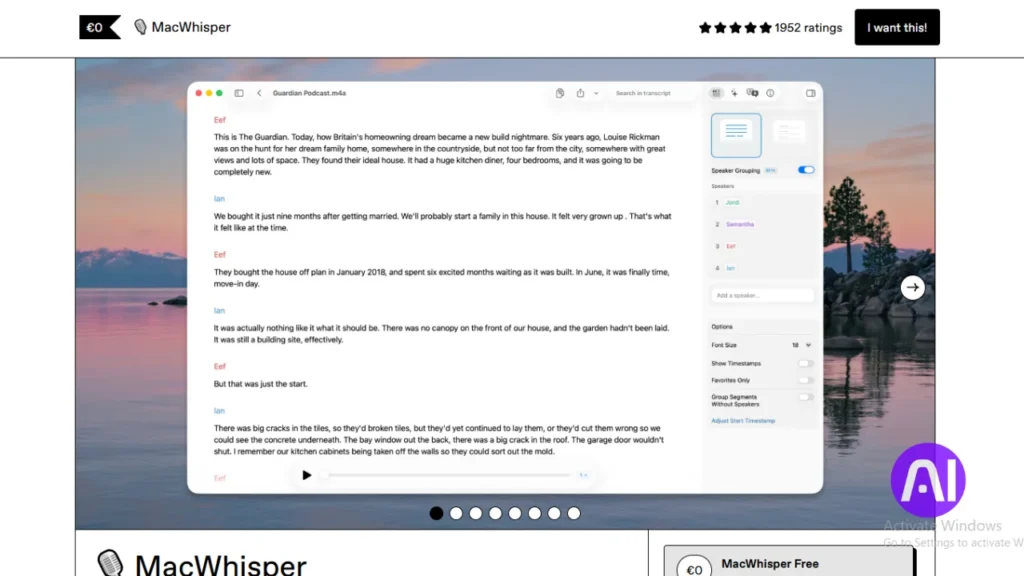
When I must keep audio on-device, MacWhisper gives me a fast path from recording to clean transcription. The app runs Whisper models locally so nothing leaves my Mac.
Overview
I use MacWhisper to capture meetings, lectures, and interviews without cloud uploads. Automatic meeting recording works with Zoom, Teams, Webex, and direct mic input.
Core features
- On-device Whisper-backed models that support about 100 languages and strong accuracy across accents.
- Filler word removal and variable playback (0.5x–3.0x) to speed editing.
- Video file import for baseline captions and easy timing refinement.
- Exports ready for my editor or CMS so I can move from transcript to publish quickly.
Pros and cons
Pros include broad language support, quick cleanup tools, and true on-device privacy. Cons are higher Pro pricing in euros and heavy memory use on older Macs.
Best for
Privacy-conscious professionals who need reliable on-device dictation and meeting capture. The free tier is useful for testing; Pro licenses scale to teams.
| Feature | Support | Notes |
|---|---|---|
| Languages | ~100 | Whisper models handle many accents |
| Meeting capture | Zoom/Teams/Webex | Auto-records without joining as a bot |
| Video | Yes | Baseline transcript + caption timing |
| Pricing | Free → Pro (EUR) | Multi-license options for teams |
6. Live Transcribe
I turn to Live Transcribe when I need instant captions that keep conversations accessible and clear.
Overview
I use Live Transcribe to display spoken words as large, readable text during meetings and chats. It helps people follow along in real time and reduces misunderstandings when speakers talk fast.
Core features
- Real-time captions that update instantly so I don’t miss key points.
- Support for over 50 languages and simple view adjustments to improve readability.
- Typed responses inside the app, helpful in noisy rooms or mixed groups.
- Works both online and offline, which keeps it useful when connectivity drops.
Pros and cons
- Pros: strong accessibility features, multi-language support, and easy export of conversation text.
- Cons: in-app purchase plans limit hours on some tiers, so I track usage when I need long sessions.
Best for
Deaf and hard-of-hearing users, non-native speakers, and any users who rely on live captions during meetings. Connecting an external microphone improves capture quality when many people speak.
7. IBM Watson Speech to Text
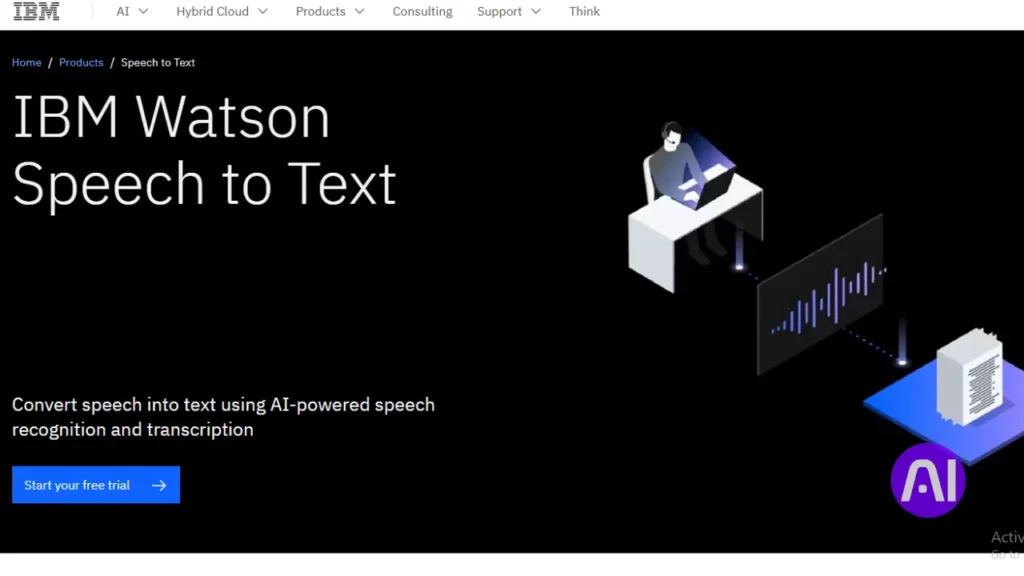
When scalability and governance matter, I turn to a platform built for enterprise voice workloads. IBM Watson Speech to Text offers fast transcription with options to tune models and control where data lives.
Overview
I use Watson when I need speech recognition that scales across contact centers and regulated business units. It supports multiple languages and deploys in public cloud, private cloud, hybrid, or on-prem setups.
Core features
- Custom language and acoustic models to improve recognition of domain terms and jargon.
- Smart formatting to output dates, times, and currency cleanly in text.
- APIs with confidence scores so I can flag low-confidence segments for review.
- Data isolation and on-prem deployment options to meet strict compliance needs.
Pros and cons
- Pros: strong customization, concurrent transcription at scale, and robust enterprise controls.
- Cons: costs rise with volume and teams need technical skill to fine-tune models.
Best for
Contact centers, regulated industries, and developers building voice-enabled business apps. Lite includes 500 free minutes monthly; Plus starts near $0.01 per minute, with Premium and Deploy Anywhere pricing for large customers.
| Deployment | Customization | Pricing | Strength |
|---|---|---|---|
| Public / Private / Hybrid / On‑prem | Custom vocab & acoustic training | Lite (500 min free), Plus ~ $0.01/min | Enterprise-grade controls |
| Cloud APIs | Smart formatting, speaker labeling | Pay-as-you-go → custom enterprise tiers | Integration-ready for workflows |
| Data isolation options | Confidence scores, phrase extraction | Volume discounts for large usage | Suitable for regulated data |
8. Just Press Record
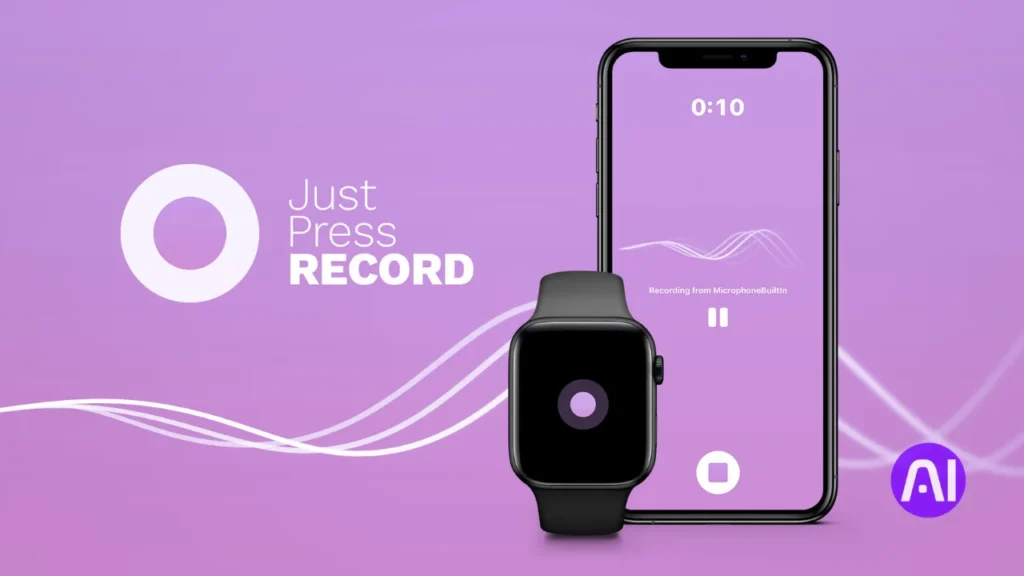
A simple recorder that syncs to iCloud saves me time when I need a transcript on any Apple device. I use this app to grab ideas fast, then open the resulting text on my Mac, iPhone, or Apple Watch.
Overview
Just Press Record gives one-tap recording and automatic transcription that shows up in documents across iCloud. The minimal interface helps me start recording in seconds and keeps audio and text together.
Core features
- One-tap recording and one-time purchase pricing ($4.99).
- Synced playback with highlighted text so I can jump to quotes quickly.
- Punctuation command recognition and support for 30+ languages.
- Hands-free start via Siri and edits to audio and text inside the app.
Pros and cons
Pros: offline capture, cross-device convenience, no subscription, and quick exports into my notes and documents.
Cons: Apple-only support and reduced accuracy in noisy environments.
Best for
Students and journalists who need a compact dictation and recording workflow that follows them from watch to desktop. I find the synced text and playback especially handy when assembling quotes for drafts.
9. SpeechTexter
When I want fast, no-install dictation in a desktop browser, I reach for lightweight web-based recorders. SpeechTexter turns spoken words into usable text quickly and with almost no setup.
Overview
I use SpeechTexter in a desktop browser for free dictation that helps me draft notes and outlines. It relies on Google speech recognition and works best with clear audio.
Core features
- Custom voice commands and phrase insertion to speed repetitive wording.
- Support for over 70 languages so I can practice pronunciation and multi-language drafting.
- Real-time conversion of speech into editable text that I copy into my editor.
Pros and cons
- Pros: no install, no signup, free access, and broad language coverage.
- Cons: it sends audio to Google servers, lacks iOS Safari support, and is not suited to sensitive material.
- Accuracy: with clear speech I often see above 90% accuracy, which cuts cleanup time.
Best for
Casual writers and language learners who want a free browser option to dictate notes or test multi-language inputs. I customize command sets so repeating boilerplate lines is a single spoken phrase.
| Feature | Detail | Notes |
|---|---|---|
| Accuracy | ~90% (clear audio) | Varies by mic and background noise |
| Languages | 70+ | Good for practice and drafting |
| Cost & Options | Free | Browser-based, no signup required |
10. Azure AI Speech
I turn to Azure AI Speech when I need multilingual, production-grade speech recognition that integrates with my pipelines.
Overview
Azure AI Speech provides cloud-based recognition and synthesis at enterprise scale. I use it to add voice features to apps, run live captions, and process large archives with consistent accuracy.
Core features
- Streaming and batch transcription that support real-time captions and bulk processing of audio and video.
- Custom vocabularies and custom models to boost domain accuracy using machine learning.
- Tight integration with Azure Storage, Functions, and Cognitive Search to automate pipelines from audio to insight.
- Global language coverage and developer SDKs that simplify building voice-enabled software and APIs.
Pros and cons
- Pros: flexible deployment, strong language support, role-based management, and telemetry for governance.
- Cons: dependence on cloud infrastructure and costs that grow with heavy transcription and streaming workloads.
- Accuracy: diarization and advanced models help with noisy, multi-speaker recordings when configured correctly.
Best for
Developers and enterprises that need a secure, scalable tool to power multilingual voice apps, video captioning, and business analytics. Pay-as-you-go pricing and trial credits make prototyping straightforward.
| Use case | Strength | Notes |
|---|---|---|
| Real-time captions | Low latency streaming | Integrates with meeting apps and web clients |
| Batch transcription | High throughput | Works well with archived video and media workflows |
| Custom models | Domain accuracy | Improves recognition of product names and jargon |
Pricing and licensing snapshot to match your budget and hours
My quick pricing snapshot shows where subscriptions, one-time buys, and usage billing make sense. I focus on straightforward cost signals so you can plan by month and by hours of transcription.
Free options: Google Docs Voice Typing and SpeechTexter let you try dictation with no spend. Live Transcribe begins free but sells hour packs, so estimate session time to avoid surprises.
One-time purchases: Just Press Record charges $4.99 once, which is ideal for personal use and simple ownership without monthly bills.
- Subscriptions: Letterly is roughly $70/year. Jamie scales from a free tier to an Executive plan with unlimited meetings, which helps teams that ramp mid-month.
- Trials and low fixed fees: Aiko offers a 14-day trial then $22, fitting solo users who need offline processing.
- Pro & multi-seat: MacWhisper is free with a Pro euro license and multi-seat packs to lower per-user cost for small teams.
- Usage-based: IBM Watson gives 500 free minutes, then Plus from ~$0.01 per minute. Azure Speech is pay-as-you-go—pilot first to estimate hours and optimize spend.
| Option | Model | Limits | Who it fits |
|---|---|---|---|
| Google Docs / SpeechTexter | Free | No monthly cost | Light dictation, testing |
| Just Press Record | One-time | Lifetime use | Personal Apple users |
| Letterly / Aiko | Annual / Trial + fixed price | $70/yr or 14-day trial → $22 | Solo creators needing offline use |
| Jamie / MacWhisper | Tiered / Free + Pro | Meeting caps → Executive unlimited; Pro multi-seat packs | Teams with privacy needs |
| IBM Watson / Azure | Usage-based | 500 free min → pay per min; pay-as-you-go | Enterprises, high-volume transcription |
In short, pick free options to test workflows, one-time buys for simple personal use, and usage or tiered plans when you can forecast hours. I often run a small pilot to match monthly spend to real usage before committing to a larger plan.
Which tool fits your workflow: students, journalists, teams, and enterprises
I map common roles to practical options so you can pick a clear path based on budget, privacy, and integration needs.
Note-taking, lectures, and study sessions
Students benefit from free or low-cost dictation that offers strong search and easy export. I recommend browser-based or cloud-backed services when campus Wi‑Fi is reliable.
When connectivity is spotty, on-device apps like MacWhisper or Aiko keep recordings and transcripts local so study notes stay private and accessible offline.
Meetings, sales calls, and customer research
For recurring meetings, I lean on solutions that auto-join or capture system audio and create summaries with action items. Jamie’s meeting capture shortens follow-ups and turns meetings into searchable notes quickly.
In customer research, export formats and robust search let me compare sessions and pull quotes into reports. Teams that need shared libraries and templates should prioritize platforms with permissions and collaboration features.
- Students & note-taking: free dictation or light subscriptions with strong search and export.
- Journalists & field interviews: offline transcription (Aiko, MacWhisper) for privacy and portability.
- Small teams: shared libraries, templates, and meeting capture to keep a team aligned.
- Enterprises: compliance, deployment models, and admin controls (IBM Watson, Azure) to meet governance needs.
| Persona | Priority | Suggested options |
|---|---|---|
| Students | Notes, search, low cost | Google Docs Voice Typing, SpeechTexter, local apps |
| Journalists | Privacy, offline use | Aiko, MacWhisper |
| Small teams | Shared notes, meeting summaries | Jamie, Letterly (collaboration) |
| Enterprises | Compliance, scale | IBM Watson, Azure AI Speech |
Language support and live captioning matter when you serve diverse audiences. I provide multiple options so you can match a workflow to your users, needs, and privacy preferences without guesswork.
Integrations and deployment: on-device, cloud, APIs, and meeting apps
I focus on practical deployment paths so you can match recognition workflows to security, scale, and daily meetings.
On-device processing keeps audio and transcripts local. That lowers risk and reduces latency when the app runs offline. It fits users who need tight privacy and simple device-based workflows.
Cloud services offer streaming and batch APIs that scale. They integrate with Zoom, Teams, Slack, Dropbox, and CRMs. Cloud platforms also push machine learning updates and provide model training and custom vocabularies to boost accuracy for domain terms.
- Meeting capture: some software auto-joins calls; others record device audio to avoid bots. Each approach has trade-offs in consent and compliance.
- APIs: developers can stream live recognition, schedule batch jobs, or hook webhooks into dashboards and editors.
| Touchpoint | Typical benefit | What to check |
|---|---|---|
| Storage & collaboration | Automates distribution | Formats, permissions |
| Video pipelines | Extract audio → transcribe | Subtitles, timestamps |
| Security | Hybrid / on‑prem options | Audit trails, role access |
Before you integrate, verify export formats, webhook support, and rate limits so the system runs reliably under real workloads.
Conclusion
I’ll finish by giving clear next steps so you can move from recording to useful text fast.
Start with your needs: privacy, meeting summaries, offline work, or scale. That will narrow which tools fit and save time when you trial options.
If meetings drive your workflow, pick software that generates summaries and action items. That reduces follow-ups and keeps teams aligned.
For field work and sensitive files, choose on-device transcription so audio and records stay local while you work offline.
When compliance and scale matter, favor enterprise-grade software with deployment choices, custom vocabularies, and admin controls.
Test with your accents, audio quality, and typical meeting length. Check language coverage, speaker labeling, and search before you commit so the final text is usable.
FAQs
How accurate are the transcription services I reviewed?
Accuracy varies by provider and audio quality. I saw top performers hit 90%+ on clear, single-speaker files, while noisy recordings or heavy accents lowered scores. Noise suppression, custom vocabulary, and model tuning all improve word recognition.
Which platforms support on-device processing versus cloud-based transcription?
Some apps like MacWhisper and Just Press Record offer local, on-device transcription for privacy and offline use. Others such as IBM Watson and Azure Speech rely on cloud APIs for scalability and continuous model updates.
Can these services handle multiple speakers and identify who said what?
Speaker diarization is available in many enterprise-grade options (Azure, IBM Watson) and some consumer apps. It works best with distinct voice patterns and good mic placement, but may struggle with cross-talk or similar voices.
Do any tools provide meeting summaries, action items, or searchable notes?
Yes. Several products include AI summaries, action-item extraction, and searchable transcripts. I looked for features that turn long recordings into concise notes, tags, and timestamps to speed review and follow-up.
How do pricing and usage limits typically work?
Pricing models range from per-minute transcription, monthly subscriptions, to enterprise plans with custom SLAs. Free tiers often cap monthly minutes. I recommend estimating your hours per month to pick a cost-effective plan.
Are custom vocabularies and industry terms supported?
Many platforms let you upload custom dictionaries or train models on domain-specific terms. This improves recognition of technical jargon, brand names, and proper nouns in legal, medical, or niche business contexts.
What security and compliance should I look for when transcribing sensitive audio?
Check for encryption in transit and at rest, SOC 2 or ISO certifications, and data residency options. On-device solutions reduce cloud exposure, while enterprise cloud providers offer contractual assurances and compliance controls.
Which tools work best for students and lectures versus enterprise meetings?
For students, low-cost or free apps with good accuracy and easy export (Google Docs Voice Typing, SpeechTexter) are ideal. Teams and enterprises often need integrations, diarization, and compliance (Azure, IBM Watson).
How much setup or training do these systems require to get good results?
Out of the box, modern models perform well on clean audio. For consistent, high-accuracy results you may need to configure microphones, add custom vocabularies, or run short model training with labeled samples.
Can I transcribe video files and integrate with meeting platforms?
Yes. Many services accept audio or video uploads and offer APIs or native integrations with Zoom, Microsoft Teams, and Google Meet. That makes it easy to import recordings and attach transcripts to meetings.
What languages and accents do these services support?
Leading providers cover dozens of languages and many regional accents. Coverage differs by vendor, so verify the specific languages and dialects you need before choosing a product.
How do background noise and recording devices affect results?
Background noise, low-quality mics, and distant speakers reduce accuracy. I recommend using a good microphone, recording in quiet spaces, and enabling noise reduction features when available to get cleaner transcripts.
Are there offline options for high-security or no-internet environments?
Yes. Offline tools like MacWhisper and some on-device apps let you transcribe without sending data to the cloud, which helps meet strict privacy or air-gapped requirements.
Can I edit transcripts and export them to other apps?
Most services include editors to correct text, add timestamps, and mark speakers. Export formats commonly include TXT, SRT, VTT, and DOCX, which makes it simple to use transcripts in CMS, video editors, or note apps.
How long does processing take for a typical meeting or lecture?
Processing time depends on file length, model complexity, and whether processing is local or cloud-based. Near real-time options exist for live captions, while batch uploads may take minutes to hours for long recordings.